
Workshop 8 notes, Week of October 27, 2008
Basic Lighting Sertup and Rendering Revisited with IES Particle Tracing
1. BASIC LIGHTING SETUP
Create three platonic solids sitting
on a rectangle in the ground plane.
- Continue with the base rectangle
(with ACS snaps on).
- Turn off ACS snaps and use the
slab tool to place a slab on the rectangle surface (tentative snap a vertice,
hit "o" for "offset"and start drawing in the rectangle).
- Place three verticle lines at
the corners of the rectangle that will serve to locate two spot lights
and one point source light (for a fill light, key and back-key light).

 Using
the " Change Element Attributes " tool (In the main tool palette,
8 th one down on the left side), check off "color" and make
each of the three primitives a separate color such as three different shades of grey in the inages below.
Using
the " Change Element Attributes " tool (In the main tool palette,
8 th one down on the left side), check off "color" and make
each of the three primitives a separate color such as three different shades of grey in the inages below. - In View Attributes (from pull-down
menu upper left corner of view window), check to make sure that "constructions" is
checked on so that we can see the light fixtures, and then make sure plane
locks are off.
- Choose the "define light" tool
from the Visualization Task on the right-hand
side of the Microstation application window under the task-list options.
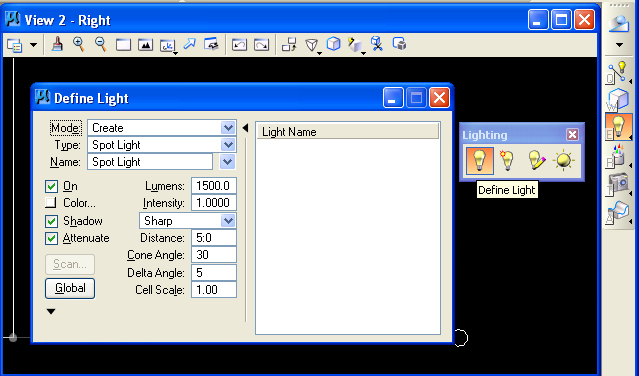
- Using the
 "Define
Light" tool to create lights in the model as follows:
"Define
Light" tool to create lights in the model as follows:

- Make sure the "Type" Mode in the dialog box is set to " create"and
then place spot lights on two of the "poles" on the right-hand
side of the model at intensities of of 1.0 and 0.75, for key and back lighting.
- Create a point light at intensity
0.5 on the front left-hand pole.
- Check Settings/Rendering/Global lighting and turn
off solar light by removing the check from the check-box below.

- Under View attributes, turn off
constructions so as to hide the light fixtures (the lights will still impact
the rendering of the model) and to prepare for rendering the model.
2. STANDARD RENDERING
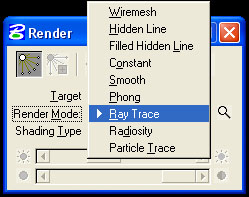
Under the Render tools palette,
select a render mode (e.g., "Smooth Shading), turn-on antialiasing and render and test the lights.

In the previous workshop, we explored in turn Wiremesh, Hidden
Line, Filled Hidden Line, Smooth (Gouraud) Shading,
Phong Shading, and RayTracing. We will return to Radiosity Modeling and Particle
Tracing later in this workshop.
3. BACKGROUND MAP AND DISTANCE CUE
Go to Settings>Design File>Views and
- Browse for a Background image
and check off the box (C:\Documents and Settings\All USers\Application
Data\Bentley\Workspace\SystemMaterials\pattern\SkyBlueSmClouds.jpg).

- Go Settings/Rendering/Rendering Setup and Create Distance Cue as quick
way to give atmosphere to rendering.
- Change " Distance cue" to " fog" .

- It is also possible
to control the near distance, density, and the far density of a fog effect.
- In Settings>Rendering>General
menu, can change " Fog color" (pick light blue).
- Change "far density"
to 0.75 and, optionally, change "near density" to 0.25.

- To turn the background image
off background off, go to Settings>Rendering>View attributes or to
the the upper left-hand corner view pull-down menu>View
Attributes and check the background off.
4. SAVING RENDERINGS
- V iew size in Settings>Rendering>View
size.
- Set to 640x480 (make sure " proportional
resize" is off).
- Save image file by going to Utilities>Image>Save
(check options and save by browsing to folder).
- To see image in microstation,
go to Utilities>Image>Display .
5. FILE
TYPES FOR MATERIALS (REVISITED)
These files are interchangeable
between drawings and are stored outside the .dgn file:
Materials Table (file extension " .mat" )
- References the palette files
and assigns individual materials according to object or a combination of layer and color.
Material Palette File (file extension " .pal" ) –definition
of materials. Can be one of three types
- Definition
by properties [e.g. color]
- By procedure [by specific
algorithm]
- By texture mapping [literally
draping image onto a surface]
Material Photographs
- for using photographs of materials or people, usually jpg or tiff files are also included in the files needed to define materials (see classes folder Arch541-Mark-F08\Examples).
6. SIMPLE MATERIAL ASSIGNMENTS (REVISITED)
Goto Settings>Rendering>Materials
- Go to Table>Save As to start a new table.
- Go to Palette>Open and and view a pre-defined palette of materials (note these are generally stored at C:\Documents and settings\All Users\Application Data\Bentley\Workspace\System\Materials.
- Open " finishes.pal" and assign " flat warm grey" to the slab.

- Right-click on the finish.
- Go to " Assign,"
then choose the object. The material should then have a " +" next to it
and contain the layer and color of the object selected.

- Open palette " glazing.pal" and assign glass to sphere.
- Open palette " metals.pal" and assign brass to cone.
- Open palette " floors.pal" and assign tile semi gloss to rectangle.
- To preserve the new settings, right-click on the table name and save and then on the palettes to save.
7. PROCEDURE TEXT FILE
Go to Settings>Rendering>Materials
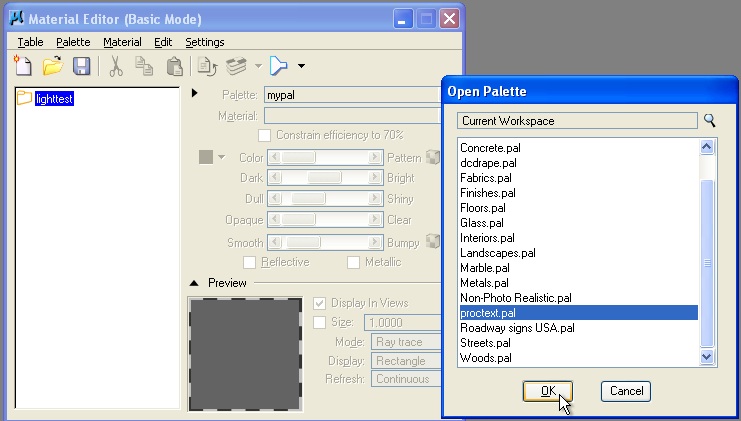
- Palette>open and go to C:\Documents and settings\All Users\Application Data\Bentley\Workspace\System\Materials.
- Open " proctext.pal" .
- Assign " dutch bond" to base rectangle, then render.
8. CREATE MATERIAL
Go to Settings>Renderings>Materials
- Go to Palette> New and save " mypal.pal" (can right-click to save or rename).
- Start new material " grue1" by right-clicking on the palette and clicking " new material" .
- Pick base color by clicking on the white square next to color.
- Adjust sliders for: Ambient Diffuse Specular Finish Transmit Reflect Refract.
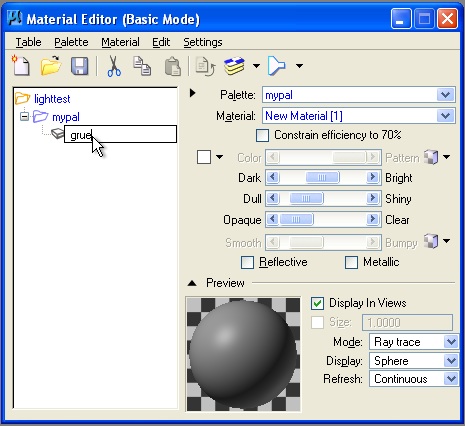
- Add bump map by
clicking on the " pattern" button and switching the " Map" to " bump"
(Use StuccoBump.jpg from
C:\Documents and settings\All Users\Application Data\Bentley\Workspace\System\Materials\bump).
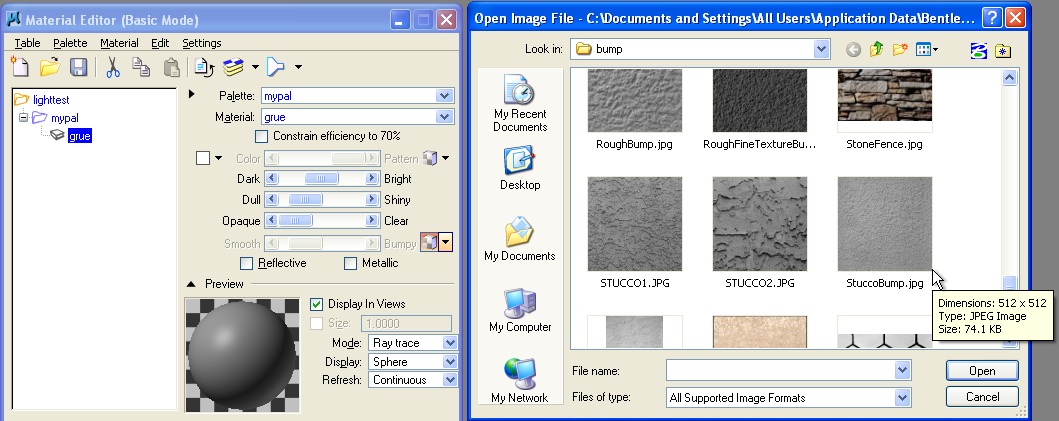
- Set units to "Master" and reduce Size X and Size Y values to 0.50.

- Resave palette.
- Right click on name "grue" and go to assign materials option.
- Assign grue1 to an object (such as the cone).
- Render.
- Reserve for next time.
9. MODIFY PROCEDURE TEXTURE MAP & CREATE
YOUR OWN
In step 7 you had acuired the procdure texture map via the Palette> Open sequence:
(the palette is located in C:\Documents and settings\All Users\Application Data\Bentley\Workspace\System\Materials).
- Select the procedure map for "Flemish Bond" in assign materials dialog.
- Save palette as myproc.pal in your local c: drive (or local t: drive if using a School of Architecture computer).
- Copy brick (Flemish bond) and rename it (e.g., "myflemishbond).
- Hit edit button, change mortar color.
- Save palette (note that have renamed and provide unique names for the palette and material) .
10. TO MAP IMAGE
- In the new palette, right-click
for "new material" .
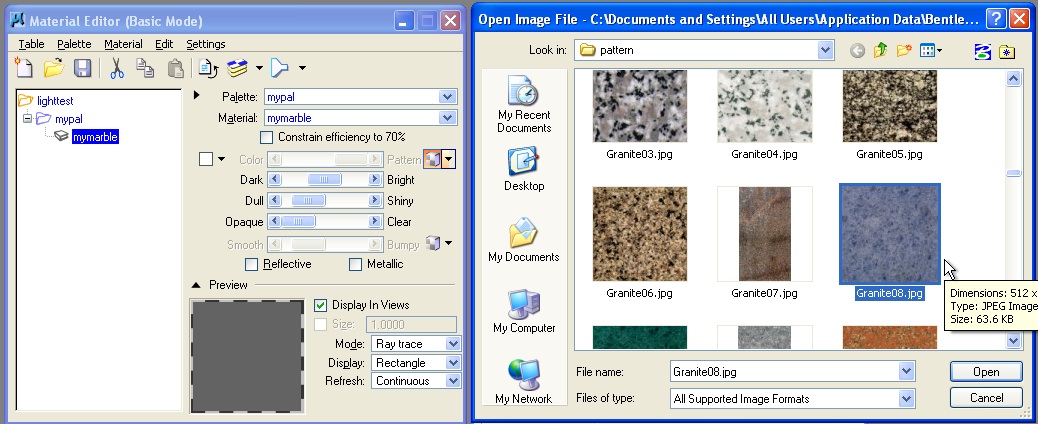
- Hit the " Pattern" box.
- Click on the magnifying glass to browse for image, such as
- Under "units" make
sure it is assigned to "surface" to stretch the image to the surface area.
- Alternatively, you can provide more explicit scale such as Master" tiles
it in 1"x1" modules.
- In the model, build a new rectangle in a new color.
- Assign image to rectangle.
- Render the view.
11. TRANSPARENT OBJECTS
- In the new palette, right-click
for "new material" .
- Hit the " Pattern" box.
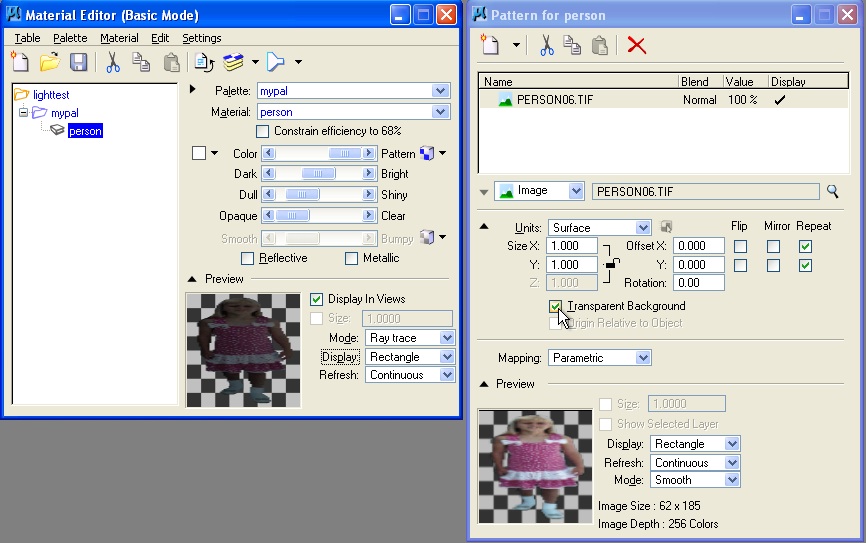
- Click on the magnifying glass to browse for an image of person (such as those copied form the classes\arch541_f08\materials)
- Turn on transparent background.
- Under "units" make
sure it is assigned to "surface" to stretch the image to the surface area (" Master" tiles
it in 1"x1" modules).
- In the model, build a new rectangle in a new color.
- Assign image to rectangle.
- Render to view.
12. ENVIRONMENTAL MAP
Table>environment maps
- Set environment maps (sky2.jpg).
- Select " raytrace.pal" and assign mirror to rectangle.
13. Download IES files and test as attached to point source light in new dgn file.
- Download folder from classes Arch541-Mark-F08\Examples\PTRACE2
- Open the file est-ies.dgn
- See rendering and lighting IES Data handout.
- Note the setup two point source lights/ and 0755FR.IES and 0584FR.IES data sets for 12” pendentive and 12”pendentive with aluminum reflector - 150 Watt bulbs.

- Load shp file … Do current particle trace solution or make new one.

- Adapt to brightness as necessary
- Note, in any new dgn file, you could create
point source light with IES data from web, site such as http://www.lightolier.com
- See Also http://www.lighting-inc.com/searchman.html, http://www.hadcolighting.co
- IES Data: Manufacturers provide
this data on spread and intensity of light that can be substituted for
lighting setup parameters. Should be used on point source lights only.
- Illuminating Engineering Society
(formed in 1906) (IESNA/IES) –Included Honory member Thomas Edison.
SEE ALSO :
http://www.arch.virginia.edu/arch541/Handouts/render/attrib.html {material attributes
http://archweb.arch.virginia.edu/arch541/Handouts/render/rtraceset.html {raytrace attributes
http://archweb.arch.virginia.edu/arch541/Handouts/render/setup.html {gen render attributes
http://www.arch.virginia.edu/arch541/Handouts/render/viewatr.html {view attributes
http://archweb.arch.virginia.edu//arch541/Handouts/sample.htm { sample marble
14. SURFACE MODIFICATION REVISITED
Go to the Task for Surface modeling > modify surfaces (icon T)
Project Trim

- Make rectangle in plan and make circle inside rectangle.
- Turn off ACS snaps .
- Move circle above the rectangle
(using the "F" or "S" construction plane).
 Use
the "project trim" tool on the modify surfaces palette (2 nd icon).
Use
the "project trim" tool on the modify surfaces palette (2 nd icon).- Make
sure "orthogonal" and "keep profile" are selected in the trim dialog box.
- Click on the rectangle, the circle, and left-click to accept.
Stitch Surfaces
- Draw a second rectangle adjacent to the first rectangle of equal width.
 Use
"stitch surfaces" (4 th icon) to join the two surfaces together.
Use
"stitch surfaces" (4 th icon) to join the two surfaces together.- Click on first object, second object, and left-click to accept.
Construct Trim
- Overlap a new rectangle over the second (in effect cutting partway into first).
 Use
"construct trim" tool (1 st icon).
Use
"construct trim" tool (1 st icon).- With"Trim first surface" option
selected, pick first and then second surface to trim.
- Left-click to accept.
Split Surface
- Pick surface with circular projected hole in it.
 Select
"split surface" tool (8 th icon).
Select
"split surface" tool (8 th icon).- Choose object then corner vertice.
- Move, and surface trims accordingly.
Extend Surface
 Select
the "Extend Surface" icon (9 th icon) and make sure "extend
mode" is "tangentia".
Select
the "Extend Surface" icon (9 th icon) and make sure "extend
mode" is "tangentia".- Select edge of rectangular surface and move to extend surface size.
Convert Surfaces to Solid
- Place rectangle and build 3D
elevations to create an "open container".
- It is possible to make the sides by clicking on a vertice, moving to the ‘F’
or ‘S’ construction plane, tentative snapping the next
vertice and pulling up.
- Copy this rectangle to the opposite side, and create the other 2 sides.
- Use the "stitch surfaces" tool to join the rectangles together (click all 5 surfaces and left-click to accept).
 Use "Convert 3D" tool (3 rd icon), " convert to solid" option, to
convert to solid object (click ‘container’ and left-click
to accept).
Use "Convert 3D" tool (3 rd icon), " convert to solid" option, to
convert to solid object (click ‘container’ and left-click
to accept).
16. PERSPECTIVE REVISITED
Create three platonic solids sitting
on a rectangle in the ground plane.

Enter "change view perspective tool"
from the view toolbar at the top of the front window.
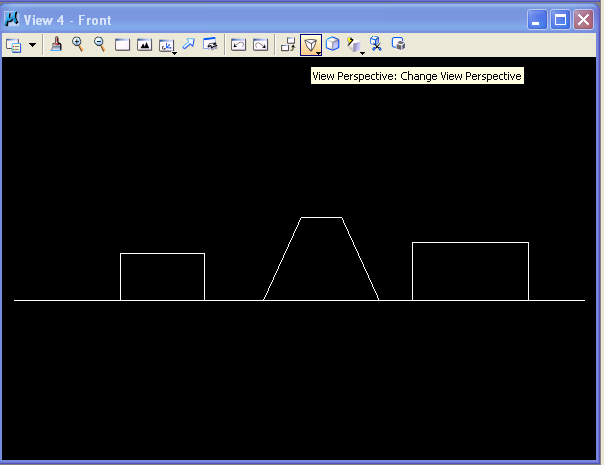
Drag the mouse from the center of
the window to the lower-left hand corner, and the perspective view takes
hold and becomes increasingly wide angle the further you drag the mouse towards
the lower-left hand corner.
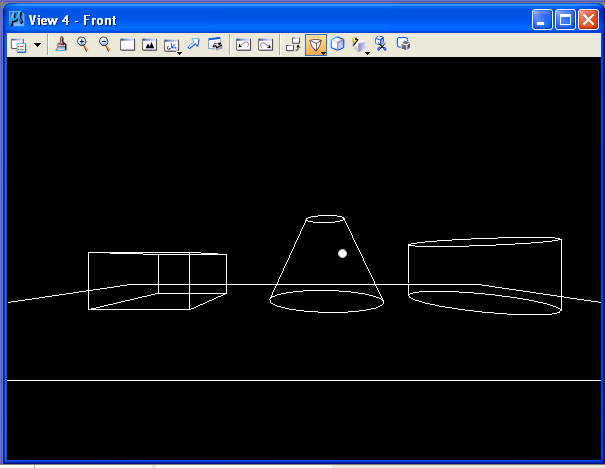
Alternatively, the "Define Camera"
tool is located in camera tools part of the Visualization module on the right-hand
side of the Microstation application window under the task-list options.
Invoke the Visualization module first.
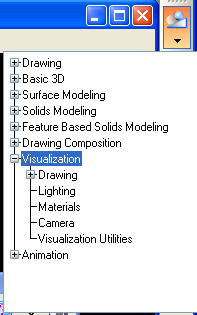
From within the visualization module,
select the "Define Camera" tool as indicated below. Choose two-point perspective
and also choose view 4, the front elevation view.
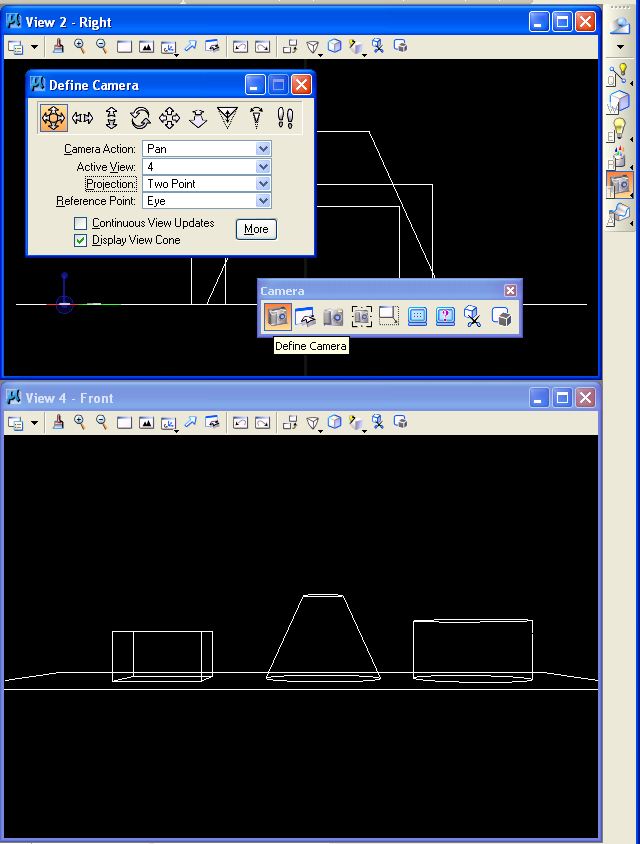
Work with the dolly camera icon
and turn own continuous view updates. Move the camera fowards and
backwards by moving the mouse from the center of the view window up and town.
Also examine the remaining perspective view controls.

Note the camera view pyramid in
the other open views.