COMPUTER
AIDED
ARCHITECTURAL DESIGN
Workshop 18 Notes,
Week of December 2, 2025
NOTE: This set of workshop notes provides a streamlined V-Ray sunlight study through Grasshopper that handles rendering more directly in Rhino without having to reference all geometry inside of Grasshopper. It works more simply with a regular surface geometry initially imported from a Sketchup File. Note too that that due to softare memory constraints and a current bug with VRay, it may be necessary to render the animation in two steps. To see how to do this simply, see the last part of these notes for a VRay Timeline detail.
The car is q 1968 Volkswagon Karmann Ghia created by ZXT, a prolific contributor to Sketchup 3D Warehouse. The car is imported into Rhino. It is then assigned to a single geometry "Geo" node within Grasshopper. A single material is created within V-Ray and assigned within Grasshopper to make the instructions for this tutorial simpler to follow. However, using the Rhino explode command, the car is first broken down into its original mesh suface parts. All of these mesh parts were assigned to the one "Geo" componennt. Alternatively, all of thes mesh compoenents could have beenimported into Grasshopper and assigned a separate "Geo" components according to their materials. Each "geo" component in turn would be linked to their own "move" and "rotate" components as prepared in the Grasshopper document using duplicate "move" and "rotate" components with duplicate component inputs. Since they are juxaposed inside the Rhino model, they would consequently appear to move as one collective object within Grasshopper.
Thus, we begin with the completed V-Ray Grasshopper-based animation file featuring a moving car. Next, we incorporate sun movement using Rhino Grasshopper's built-in components to simulate sunlight based on latitude, longitude, and time. The sunlight animation procedure can be applied to any Rhino file configured for V-Ray without requiring additioanl geometry to be imported into the Grasshopper environment. Alternatively, the workflow can be adapted to include some geometry in Grasshopper, offering advantages such as enhanced object animation capabilities. In this example, we could have also added the example of converting a Sketchup file to a proxy file. However, that portion of the this tutorial is simplified using a non-proxy object such as was already illustrated Workshop Notes 11.
The complete animation video is provided at the end of these notes. This guide focuses on sunlight animation tools that enable rendering for specific time frames, latitudes, and longitudes. Rather than detailing every technical aspect of this example, the intent is to provide a pre-configured Grasshopper file with minimal explanation to facilitate quick setup and animation creation. The notes are divided into three sections:
Part I: Preview of the example Grasshopper file.
Part II: Overview of the Grasshopper canvas layout.
Part III: The rendered animation.
The complete Grasshopper script and a demonstration Rhino file are available in the CLASSES folder for ARCH 2710 under the "examples" sub-folder named "sunStudyCarMovingSimplified".
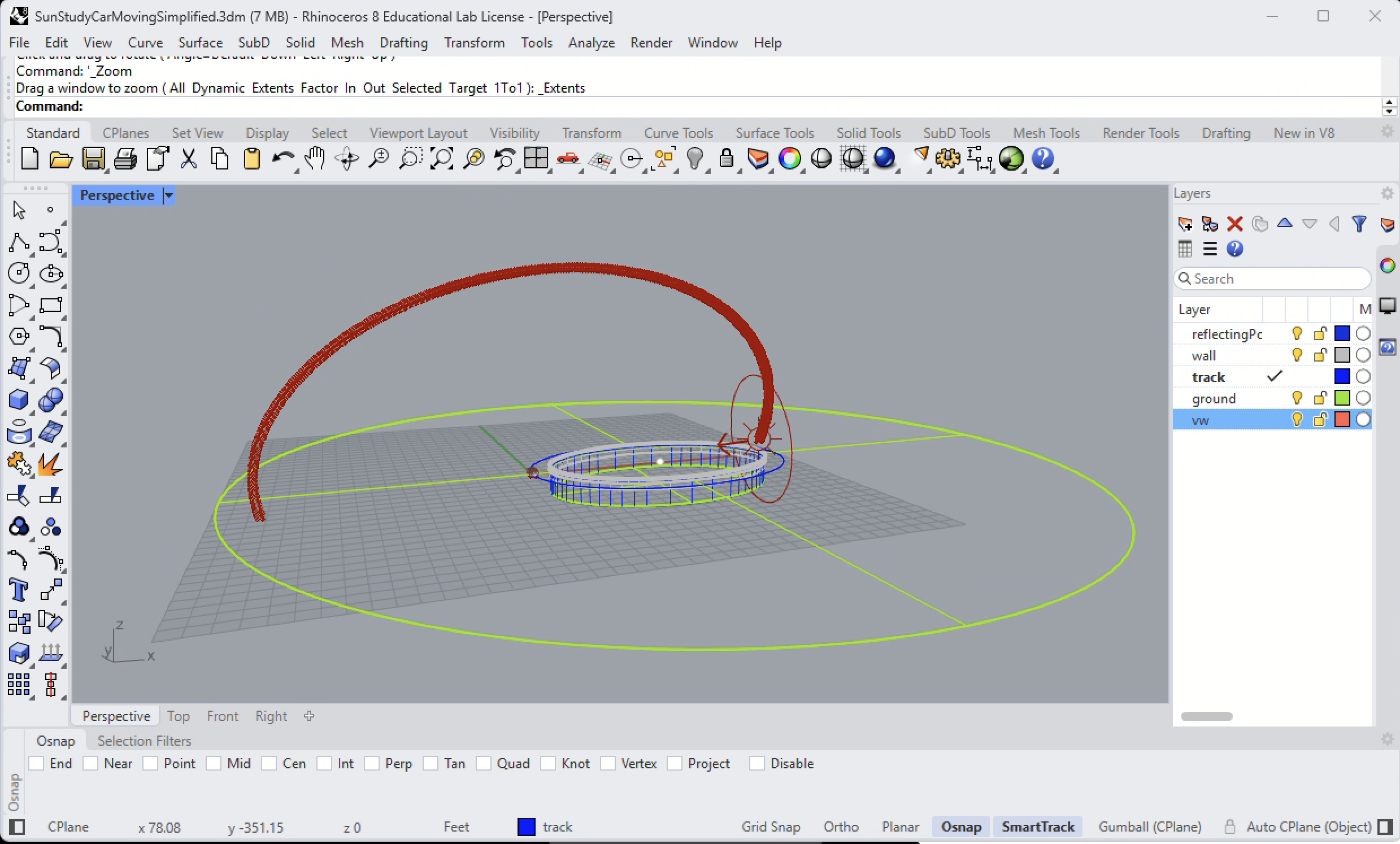
1. Open the Rhino file sunStudyCarMovingSimplified.3dm and then open the perspective view. The tightly spaced sun positions form the ring over the model. The current sun position is highlighted with a larger sun symbol in the ring. The ground plane is a circular surface. At the center of the model is a reflecting pool. A car highlighted highted in green travels around the pool
2. Next, open up the grasshopper script "sunStudyCarMovingSimplified.gh" for an overview of the completed script. Left mouse button click on the script for a full resolution view.
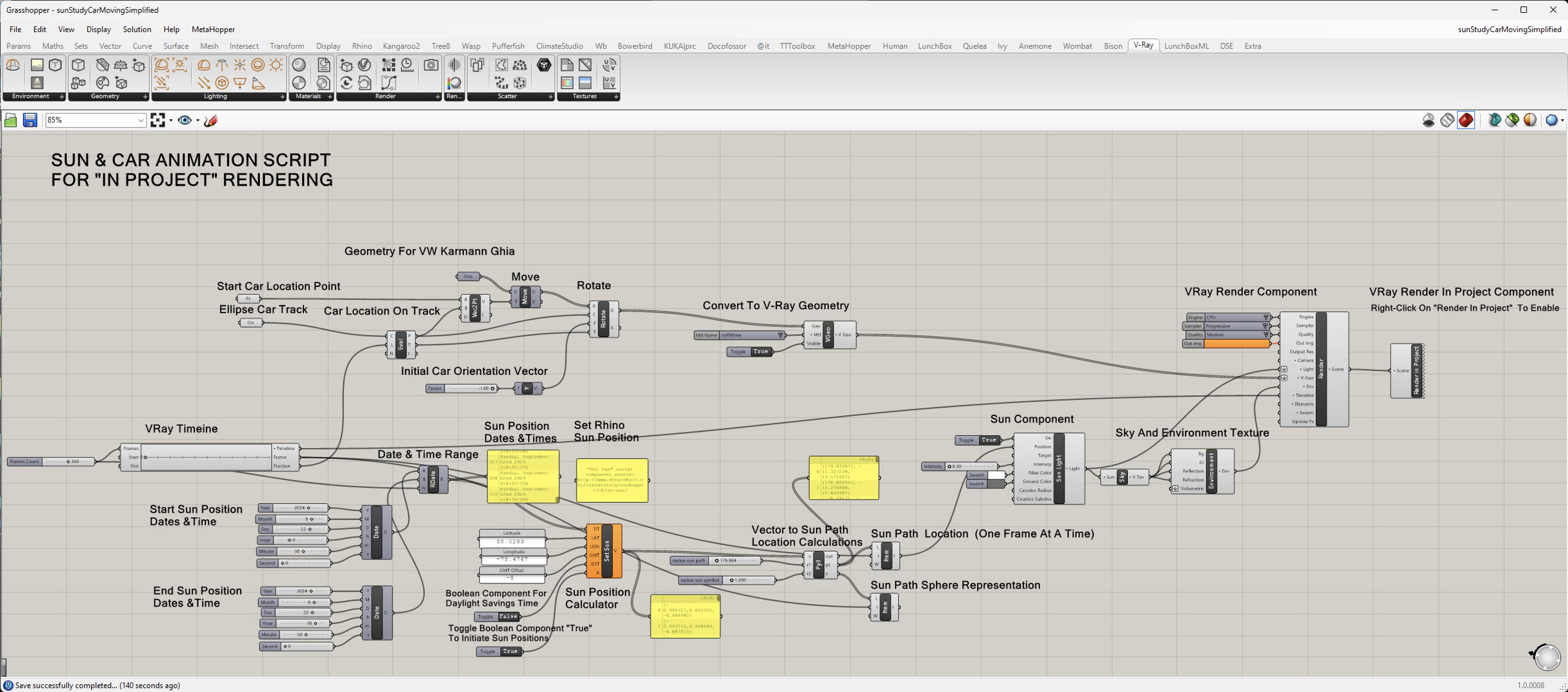
3. Next, open the V-Ray Asset Editor window and note the V-Ray materials that have been pre-assigned to the objects in the Rhino file. This includes a beige bump mapped ground material

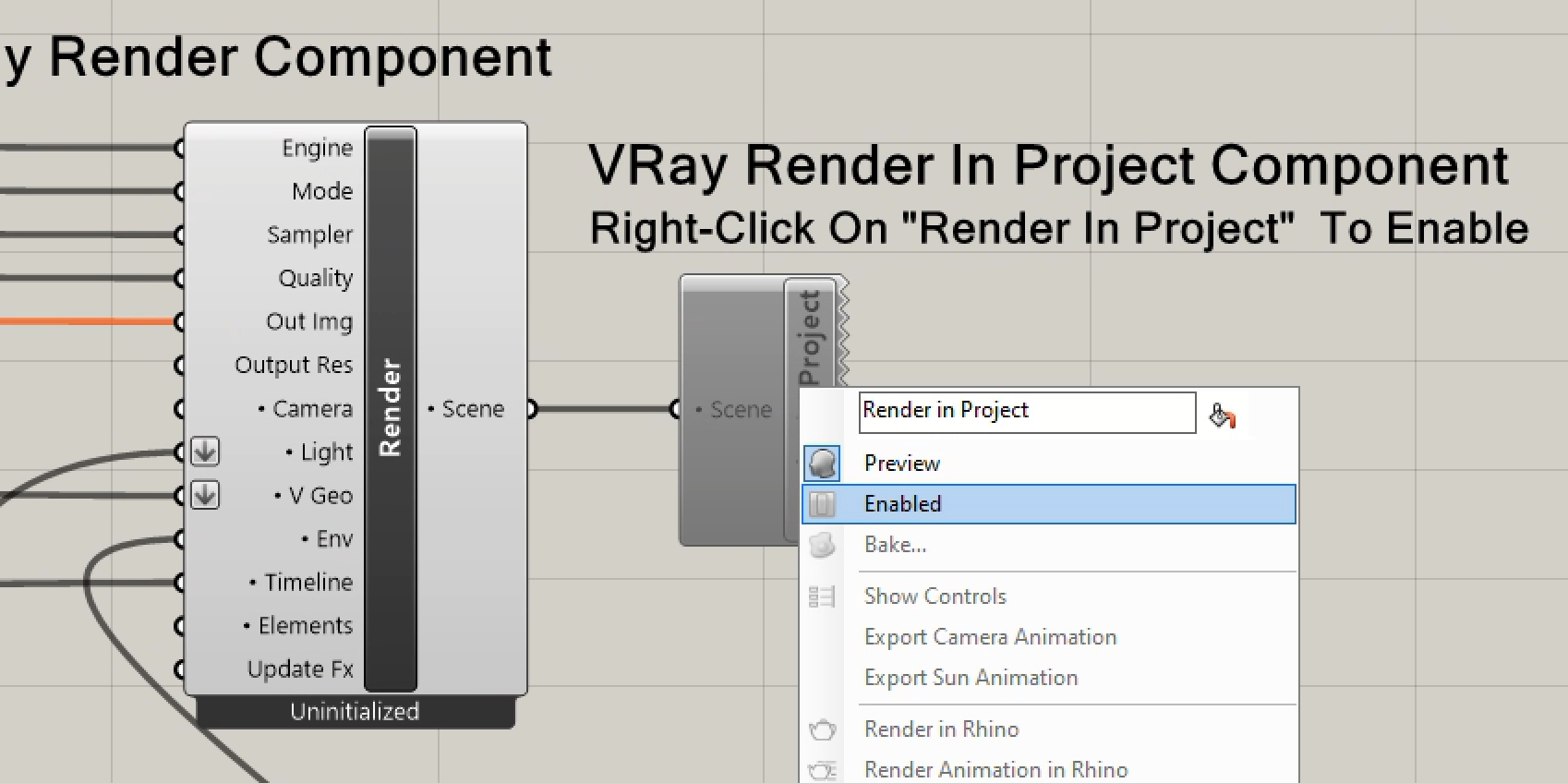
The script is nearly ready to launch. Make sure that the Rhino ''Current Renderer" menu option is set to "V-Ray for Rhino". In the V-Ray Asset editor, setup the resolution, quality and rendered frames save location as in previous tutorials. If it is greyed out, right-mouse-click on the "Render in Project" component in the Grasshopper script to enable it. Right-mouse-click on the "Export Sun Animation" in the same component to export the sun data into Rhino. Finally, right-mouse-click on the "Render in Rhino" option again in the same component to check a single rendering. Adjust for exposure level if needed, and then finally, right-mouse-click on the "Render in Project" compoent and select the "Render Animation in Rhino" option to facilitate the rendering of the animation.
A. Import a Pre-existing model of a car from Sketchup 3D Warehouse.
In this part we develop the Canvas script to the extent that you can initiate most components yourself. There are a few components that will need to be copying from the script above as they involved custom programming in programming languages using techniques that go beyond the scope of the tutorial.
1. Open a new Rhino file and to the degree desired replicate the creation and devlopment of the elements described below.

2. The process begins here by downloading a car from Sketchup 3D Warehouse. You will need to register for a free account in order to down load any files. Or, you may have another source for a vehicle or other type moving object. This model by ZXT was selected. It comes with 16 materials noted in the Sketchup 3D Warehouse web site information. Use the "Download" button below to download this or another vehicle file as a Sketchup "skp" file. The search text "VW" was used to find it.
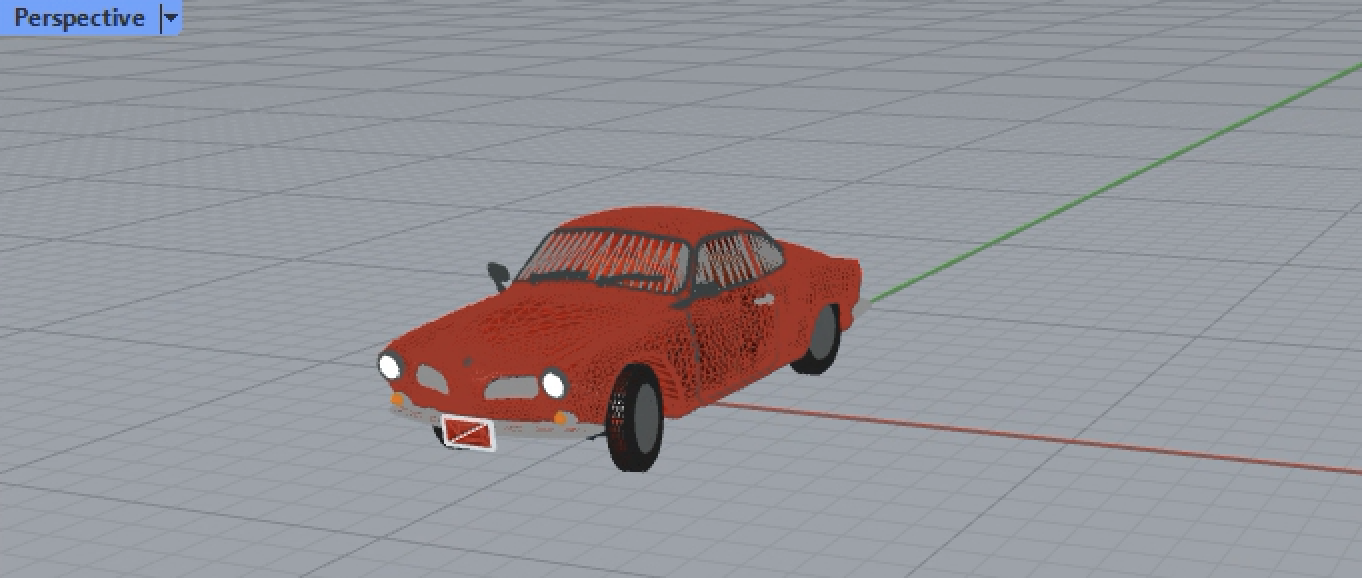
3. Within Rhino, use the "File Menu / Import" option to import the skp file into Rhino. The file will appear on the ground plane as shown in the following image :
4. Render the model in V-Ray and note that material materials are already pre-assigned through a method we've not covered this fall. However, we will cover a different method using alternative materials appropriate to our process for working inside Grasshopper.
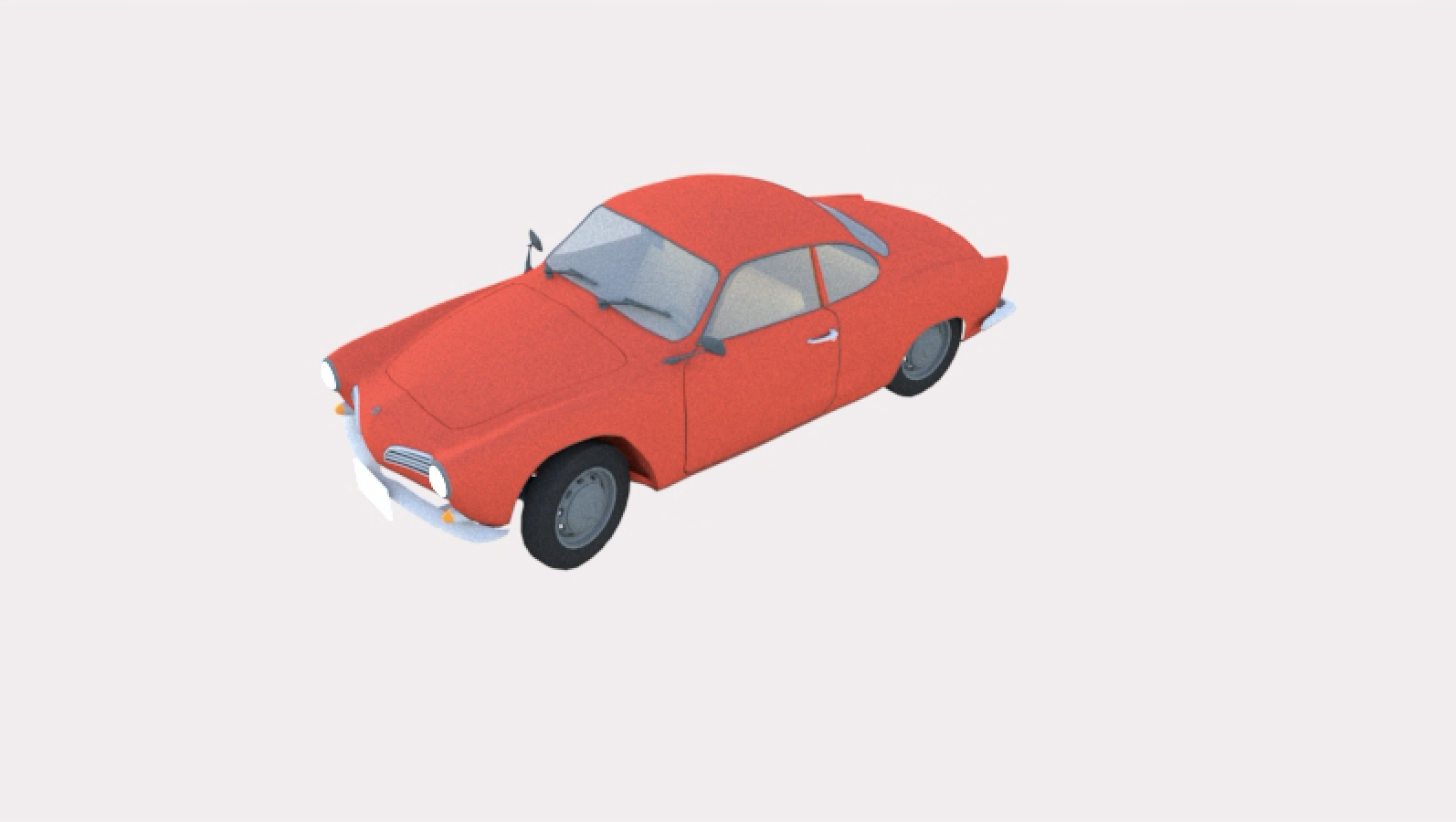
5. Move the car so that it is on the orgin of the model space and aligned with the y-axis.

6. Note that the car is imported as single object that consists of blocks. Use the Rhino "explode" command to break the single object down into blocks and the blocks into subblocks. Add a "geo" component to the Grasshopper file and set it to the car.

7. Double check to ensure that the explode tool from the Rhino main tool palette has exploded all block elements in the car to the original surface meshes that they are made from. From the V-Ray plugin to Grasshopper, Add a V-Ray Geometry Component and connect car meshes to the one "Geo" component. In turn, connecdt the "Geo" component to a "V-Ray Geo Component"
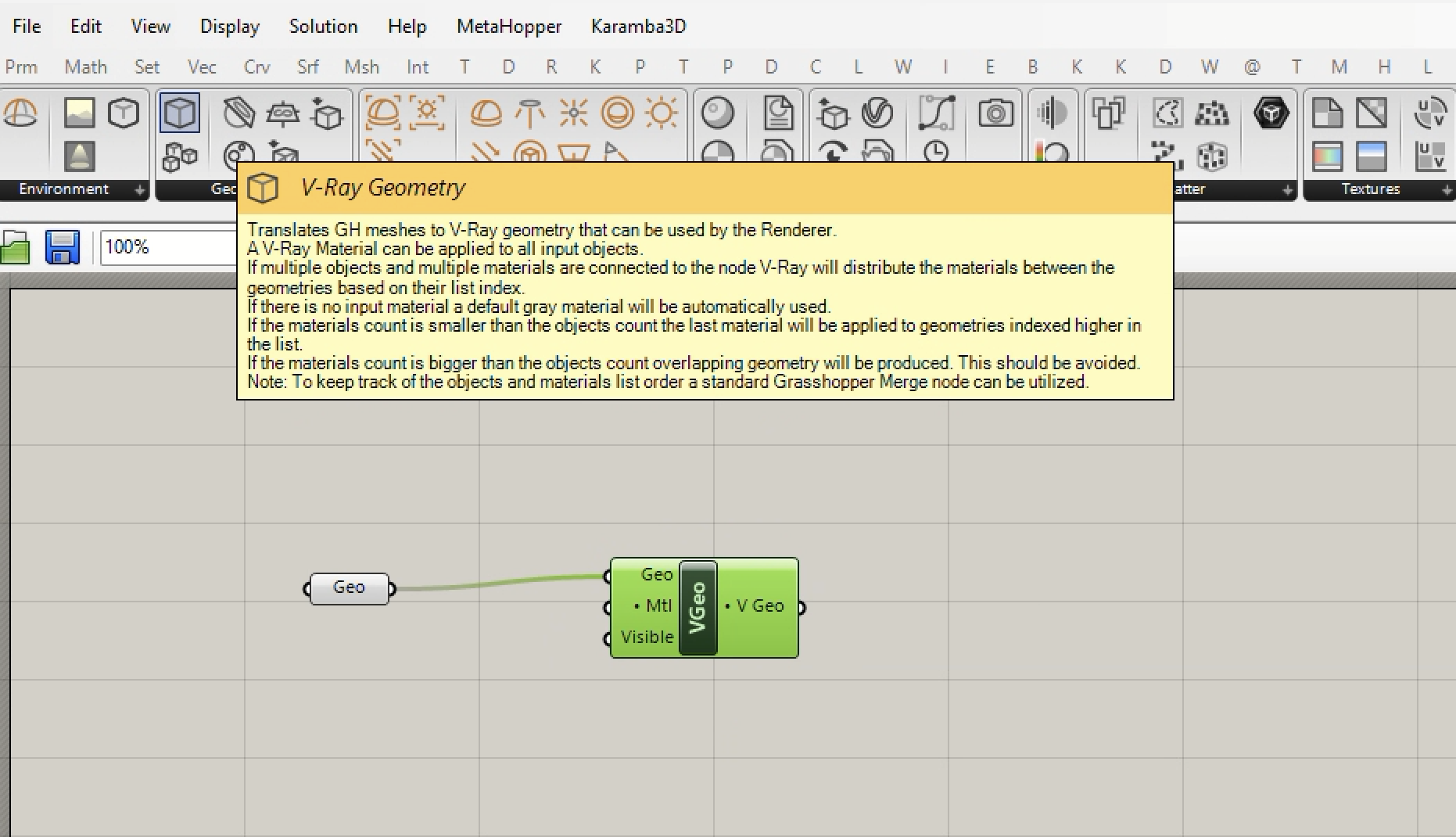
8. Right--mouse-button click on the "VGeo" of the VGeo component, use the "Show Controls" option, and set the "Visible" option to "True".

9. From the Grasshopper plugin to V-Ray add a "V-Ray Material from Project Component" to the "Mtl" input port of the VGeo component and set the material to "carRed".

10. Create a V-Ray material consisting of simple diffuse material colored red and name it "redPaint". Using the pulldown menu in the "Mtl Name" component and add material named "redPaint".

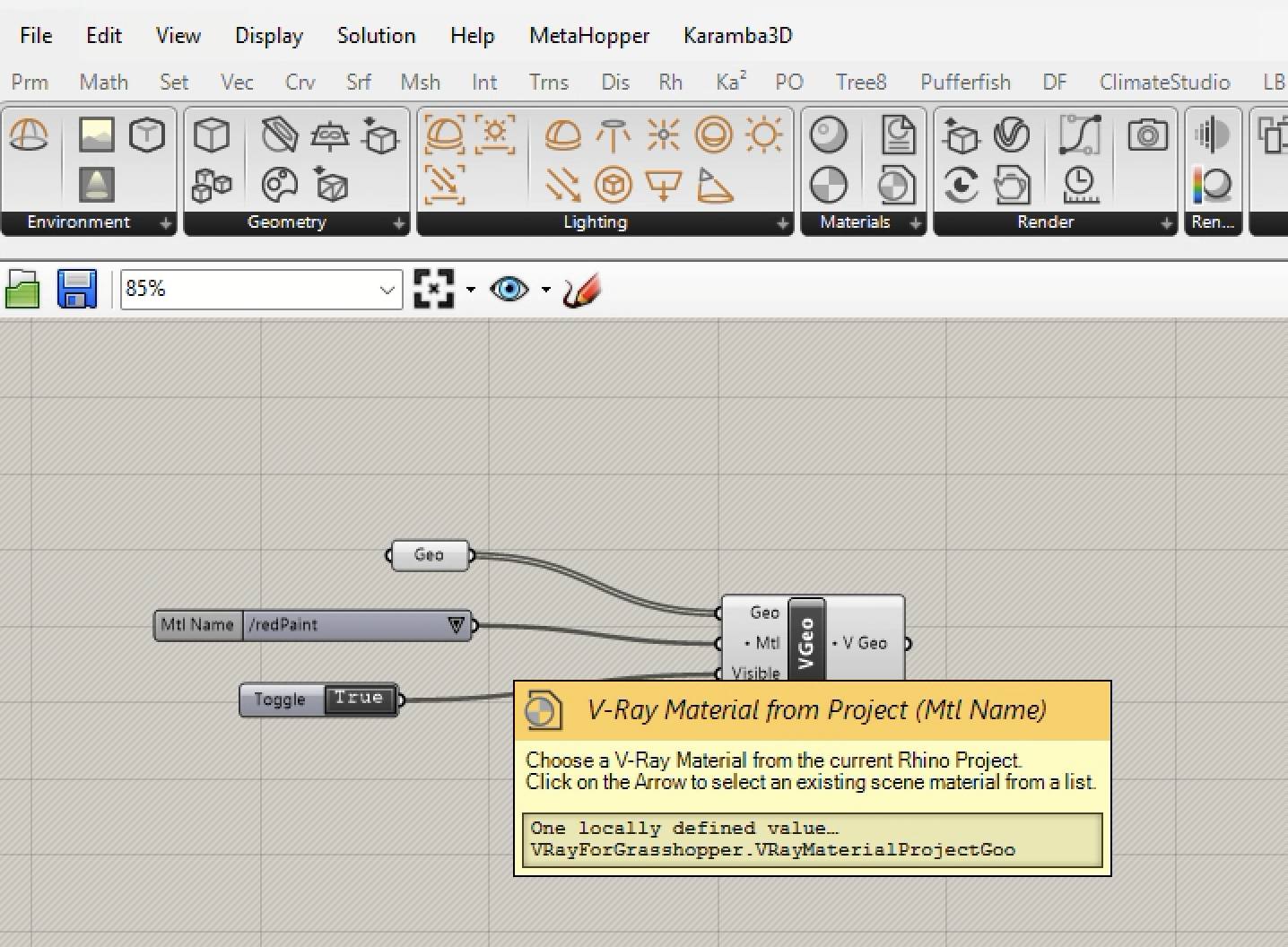
B. Do a test rendering.
11. Add a V-Ray "Render" component to the Grasshopper Window and connect it to the VGeo output port.
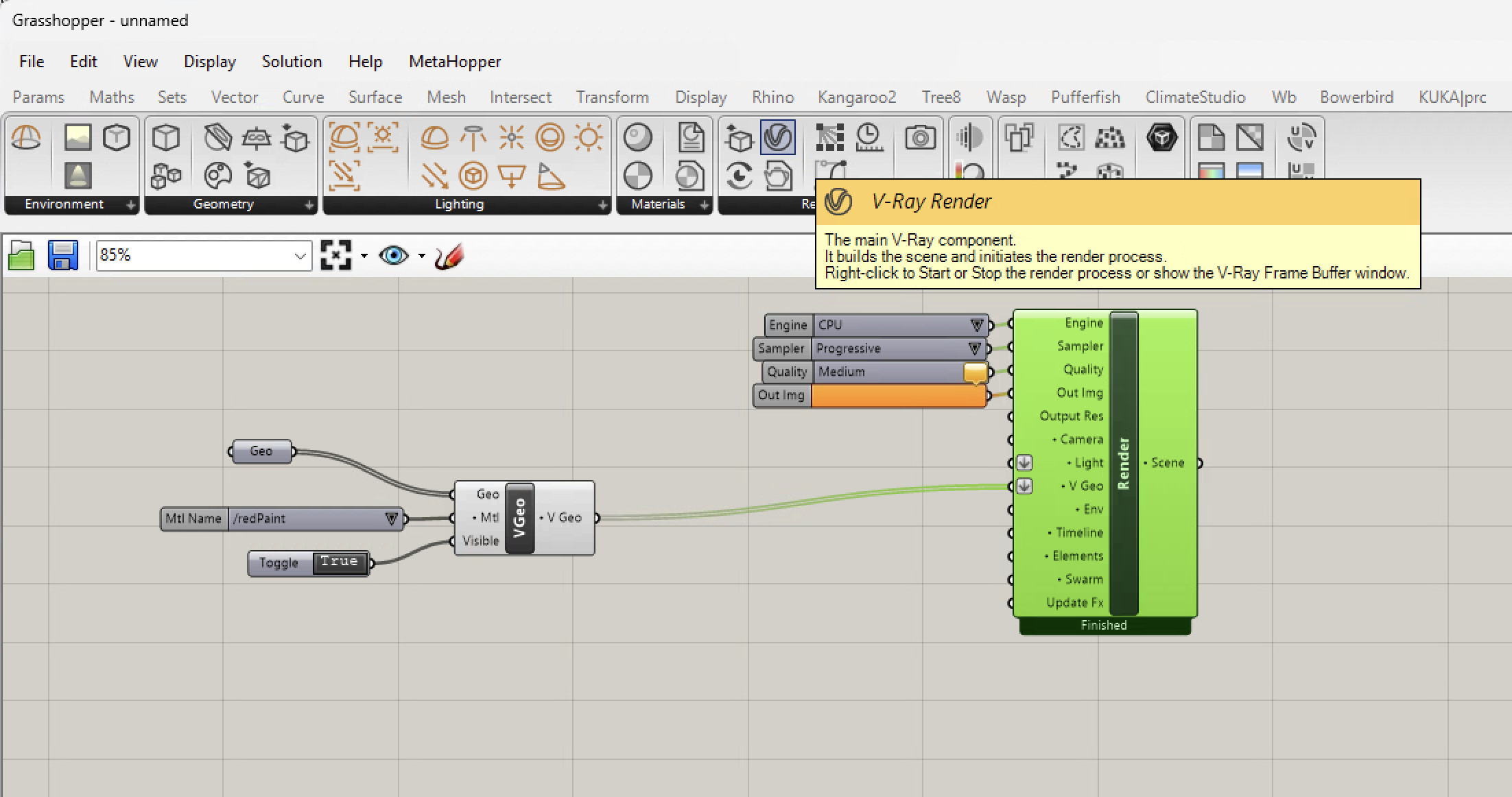
2. Initiate a test rendering by right-mouse-button clicking on the word "Render" of the new component.
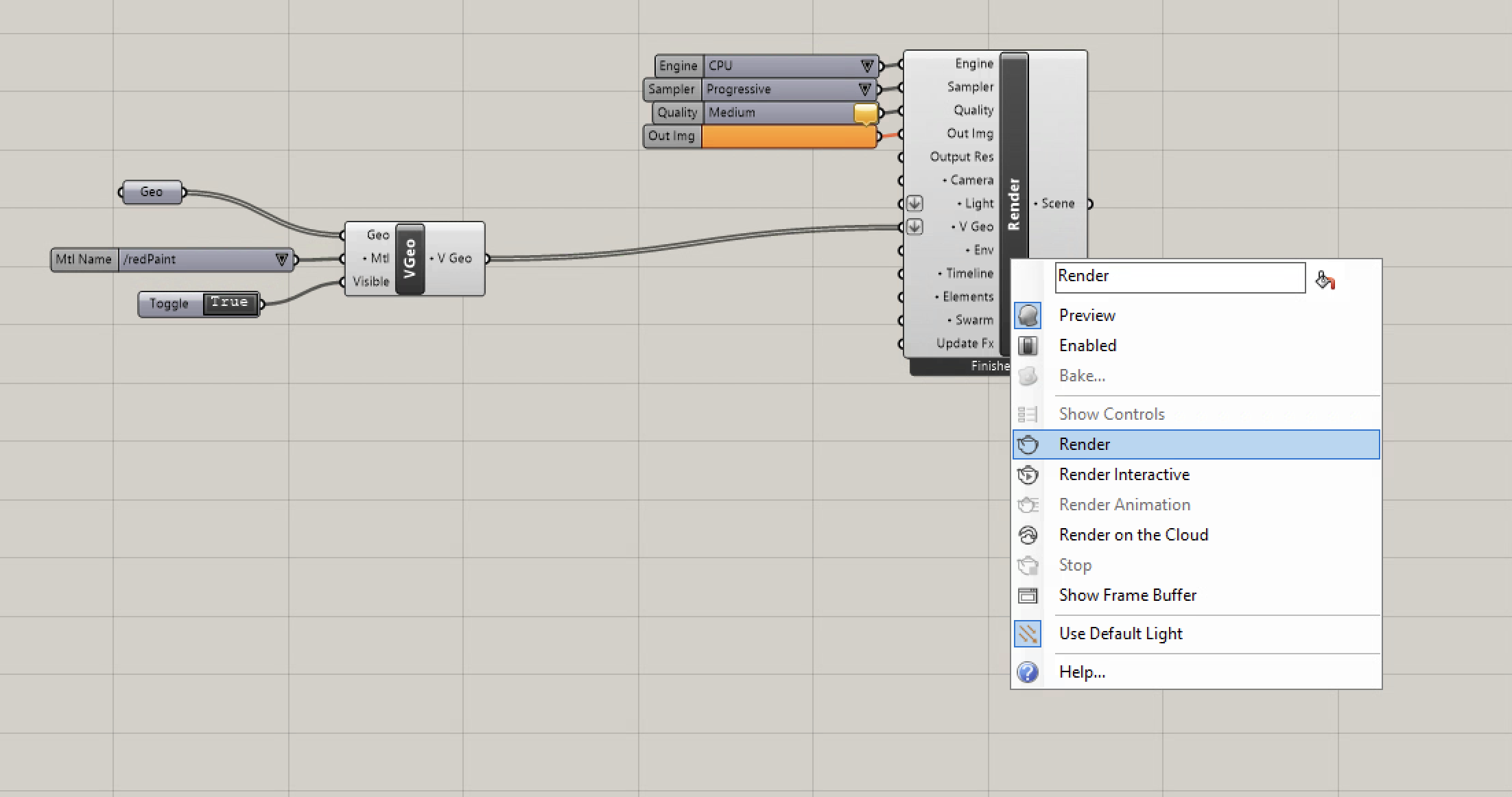
3. Since just one material was applied to all the surfaces in the vehicle. the entire geometry is red.

C. Add Grasshopper Components needed to animate the car around an eliptical track.
1. At the origin of the car, place a point and an eliptical curve representing the car track, and attached these geometrical elements to a "Pt" and "Crv" component in Grasshopper.

2. Connect the "Crv" component to an "Eval Curve" component in Grasshopper. Not the the left axis end point of the ellipse is coincident with the center point of the car.

3. Add a V-Ray Timeline component and connect its "fraction" output port to the "L" input port of the Timeline component. Note that advancing the frame number in the timeline causes a point to move about the track

4. Add a Vector component that creates vector from the center point of the car to the point that that moves along the curve through the "Eval Curve" component.

6. Now add a vector "Move" component so as to later be able to move geometry that travels along the ellipse.
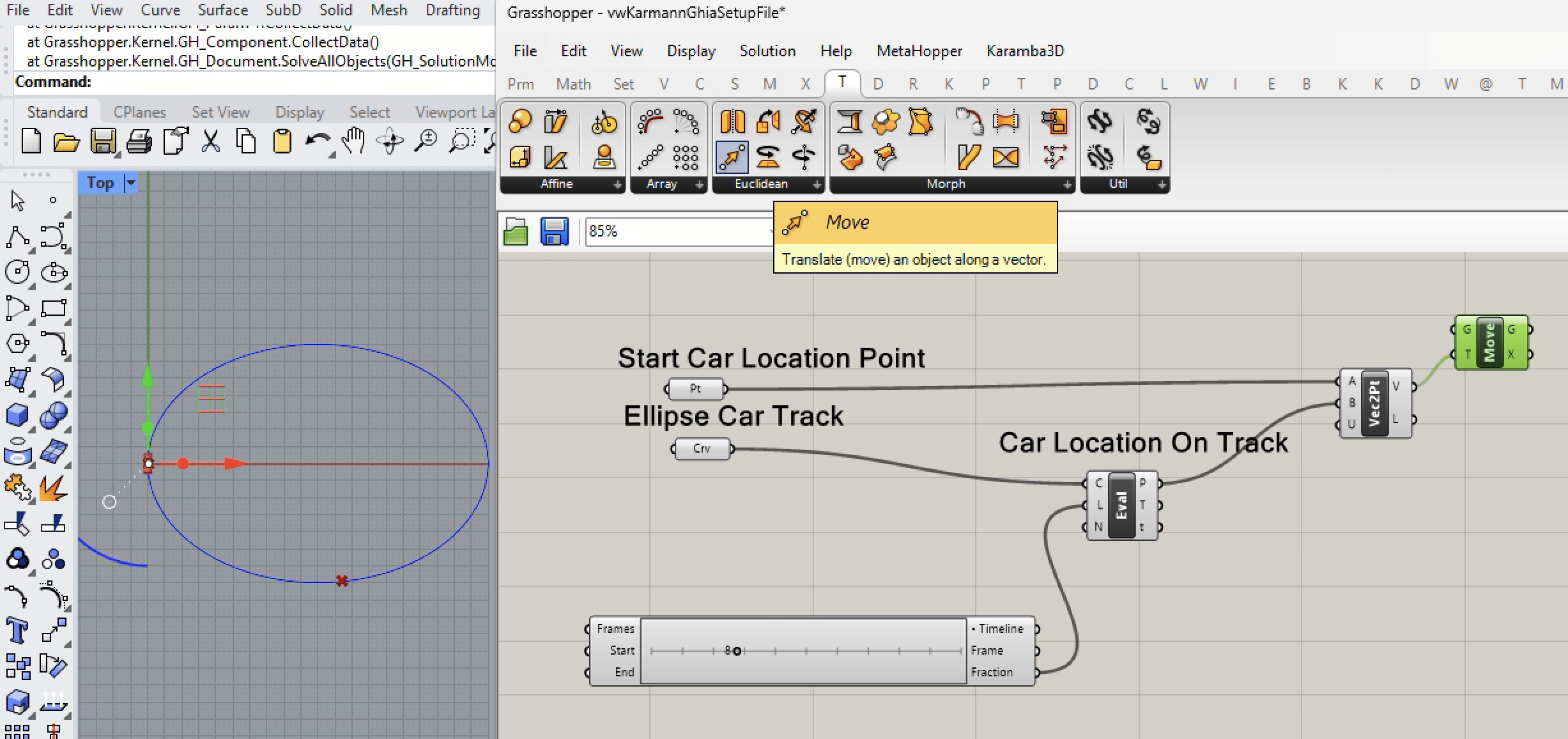
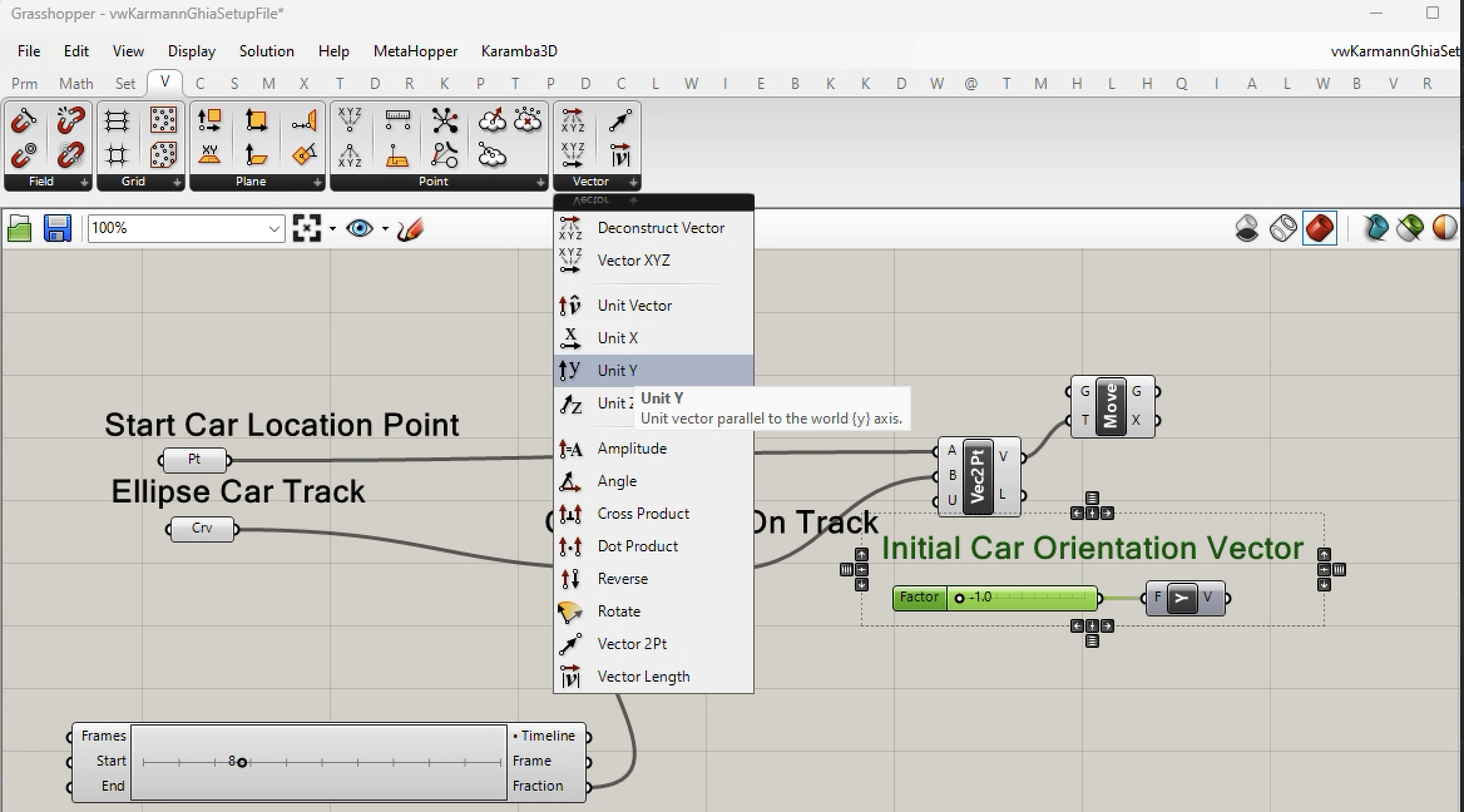
7. Next, add a unit "y" vector to the Canvas window multiplied by a numerical slider with an output value of -1. This wil reverse unit Y vector and have it point in the direction of y = -1 which is the initial direction of the car.
8, Now, add the vector based "Rotate Direction" component to the Grasshopper canvas window as indicated below.
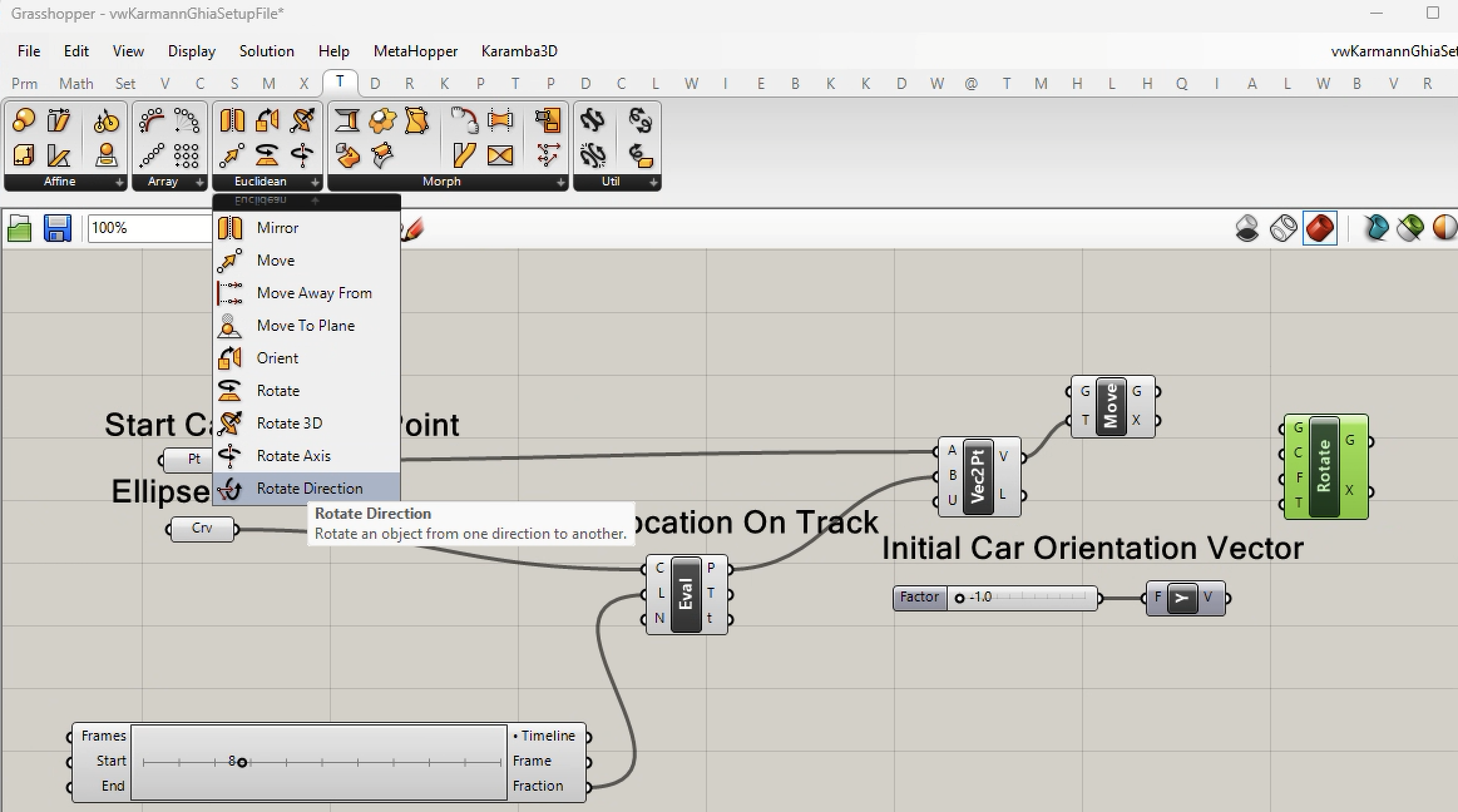
9. For the "Rotate Direction" component, we undertake two distinct sub-steps:
i. Connect the rotate vectors: connect the "V" output port of the "Unit Y' vector to the "F" input port of the "Rotate Direction" component. Connect the "T" (tangent along the curve) output port of the "Eval Curve" component to the "T" input port of the "Rotate Direction" component. These two input ports represent the "From" and "To" vectors determining the rotation of the Cooper Mini at the point traveling along the ellipse curve that is represented by the output port "P" of the "Eval Curve" component.
ii. Connect the center of rotation: connect the output port "P" to the input port "C" (center of rotation) of the "Rotate Direction" component.

10. Connect the "Geo" component for the car to the "Move" component, and in turn connect the "Move" component to the "VRay Geometry" component.
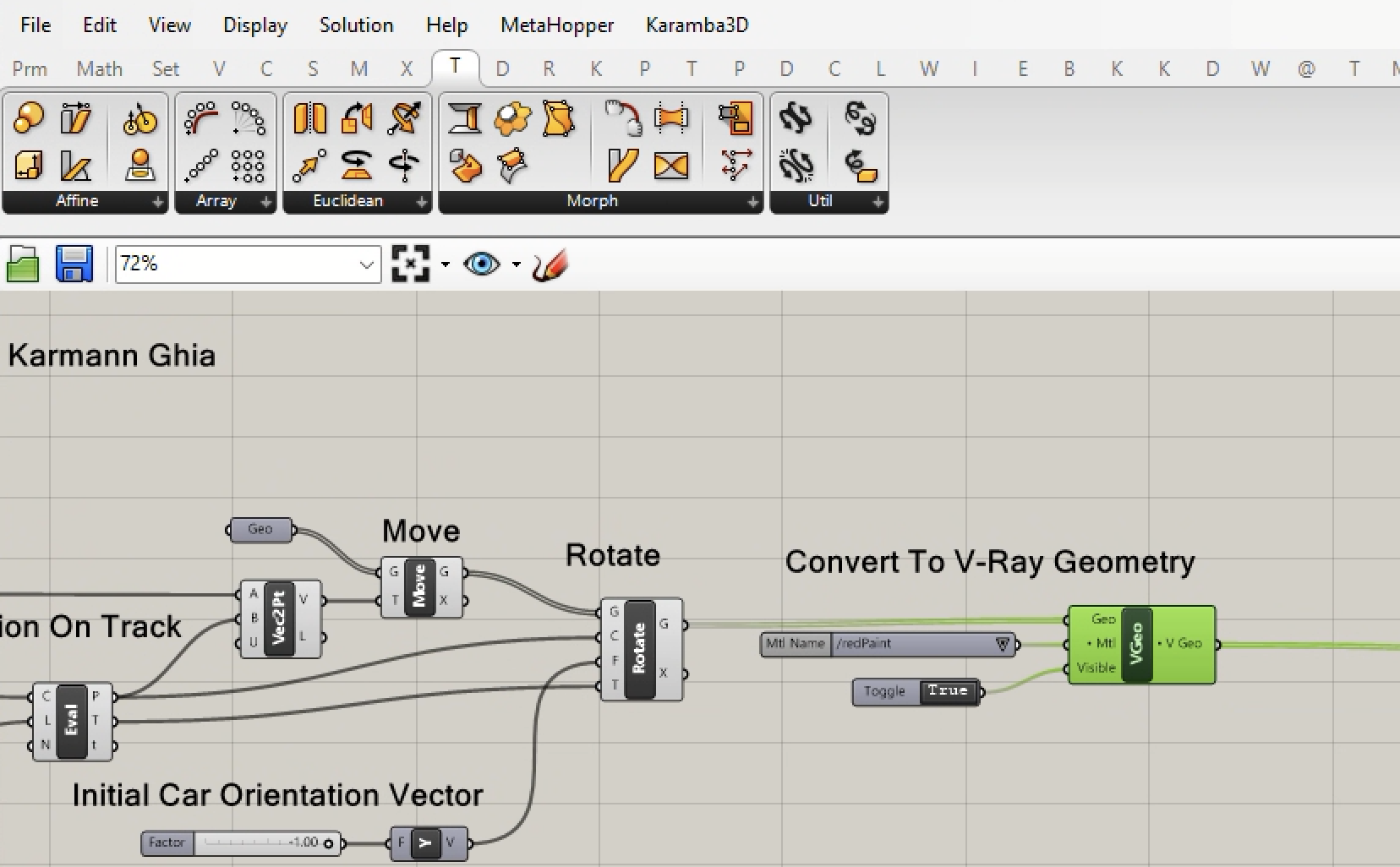
11. Note that we had previously connected the "V-Ray Geometry" component to the V-Ray "Render" component.
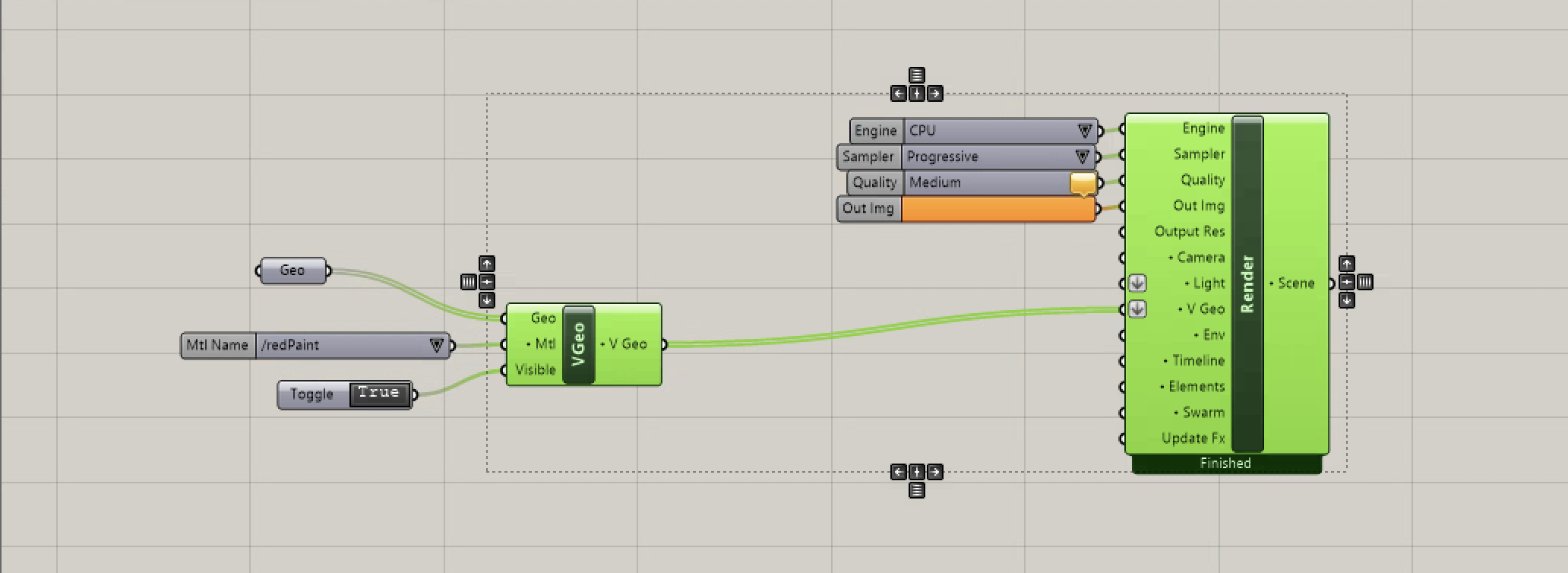
D. Car Movement Test
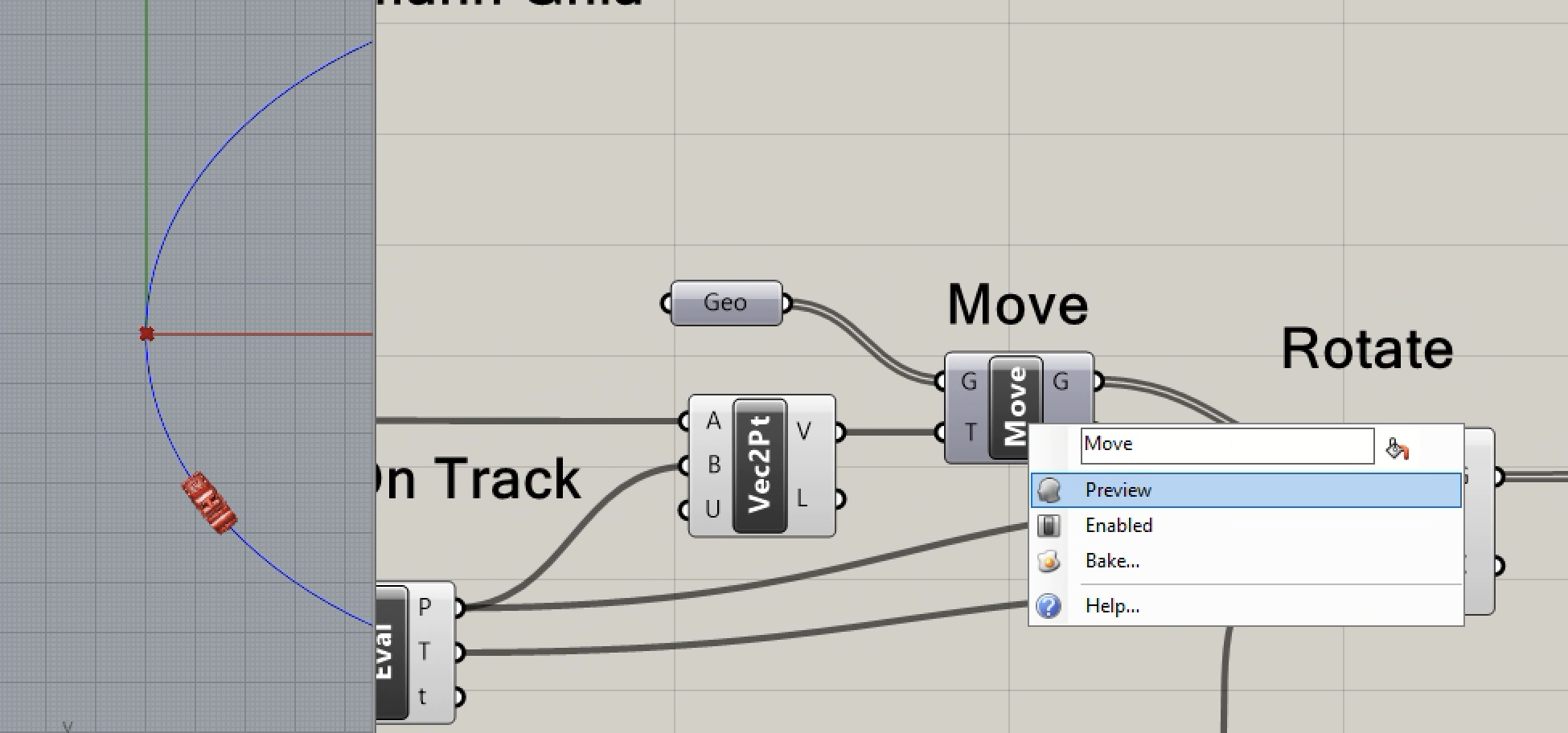
1. Advance the frame count in the "V-Ray Time" component, and note that the car moves in the counter-clockwise manner. However, there are three versions of this car: 1. the one at the start position, 2. the one at the original orientation, but at the move location, and 3. the one correctly oriented to the track at the move location.
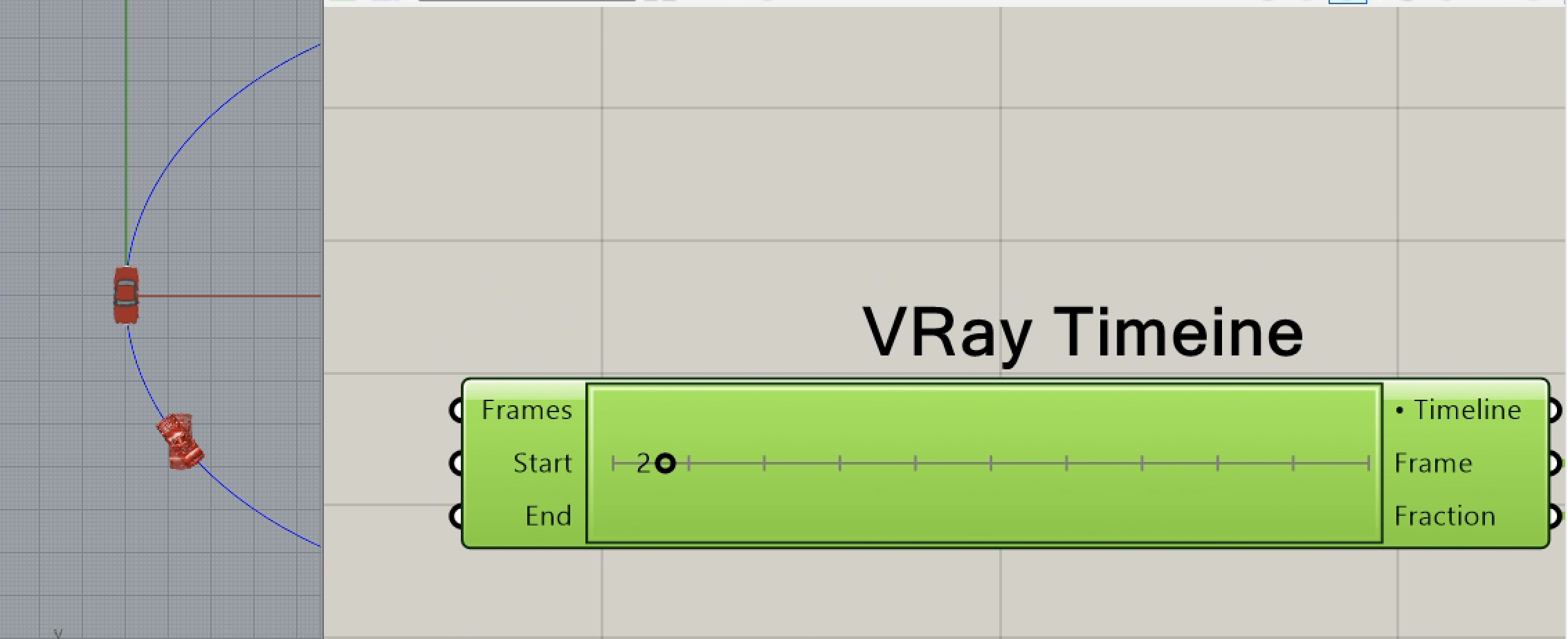
2. We can remove the car at the origin by turning off the layer "vw" with the car on it.

4. We can remove the second version by right-mouse-button clicking on the "Move" component and turning off the "Preview" option.
G. Adding Sunlight
In order to add sunlight animation, it's necessary to have a start and end time, and to determine, the number of times inbetween during wich the sunlight postion will change. In addition, the vector angle of the sunlight, latitude and longitude, and GMT offset times also need to be taken into account. In this section, some standard Grasshoppoer components are used. In addition, some addition components are used that required coding in a programming language that are beyond the scope of this tutorial to cover in depth.
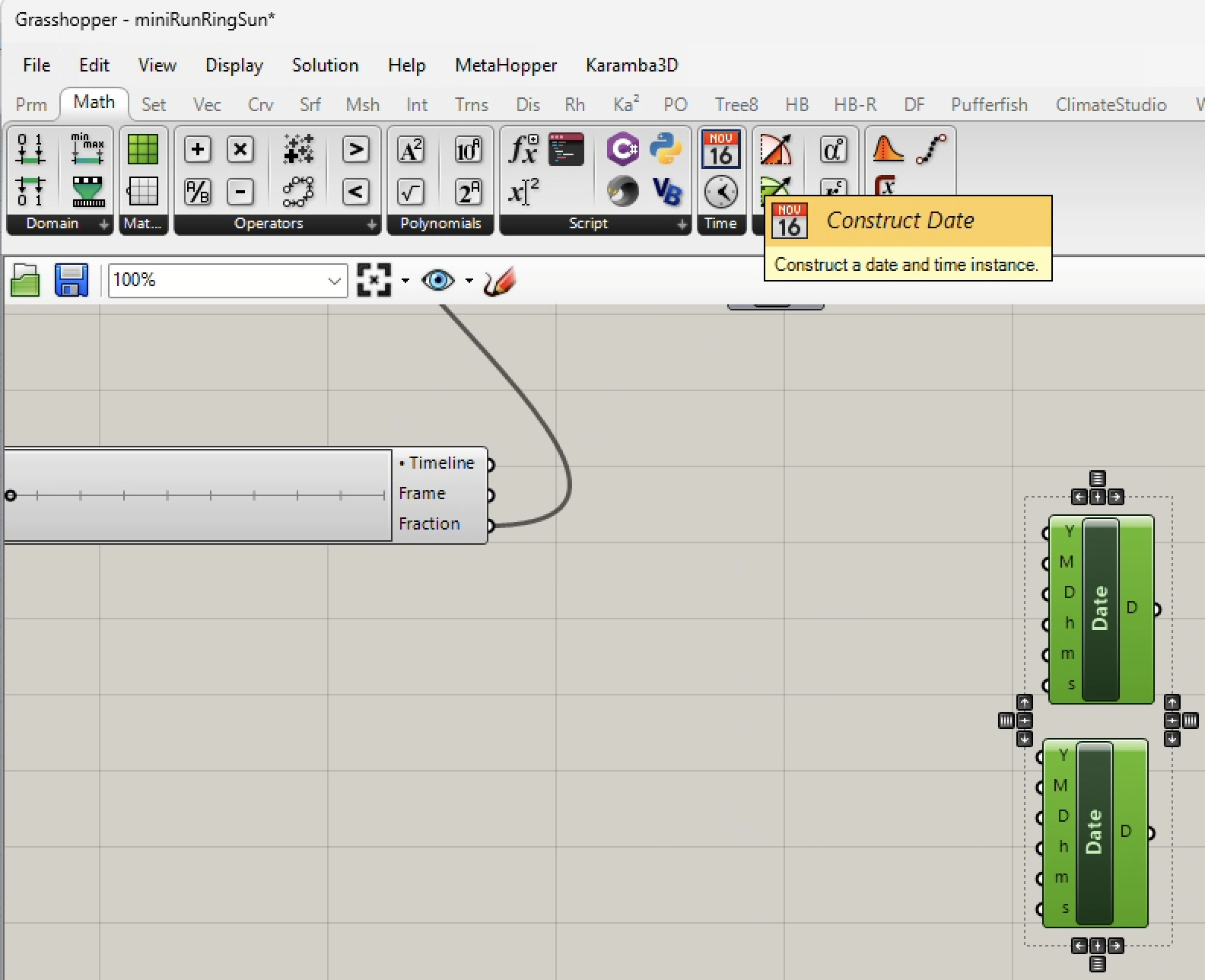
1. We begin by adding two Grasshopper Time components to indicate start and end times.
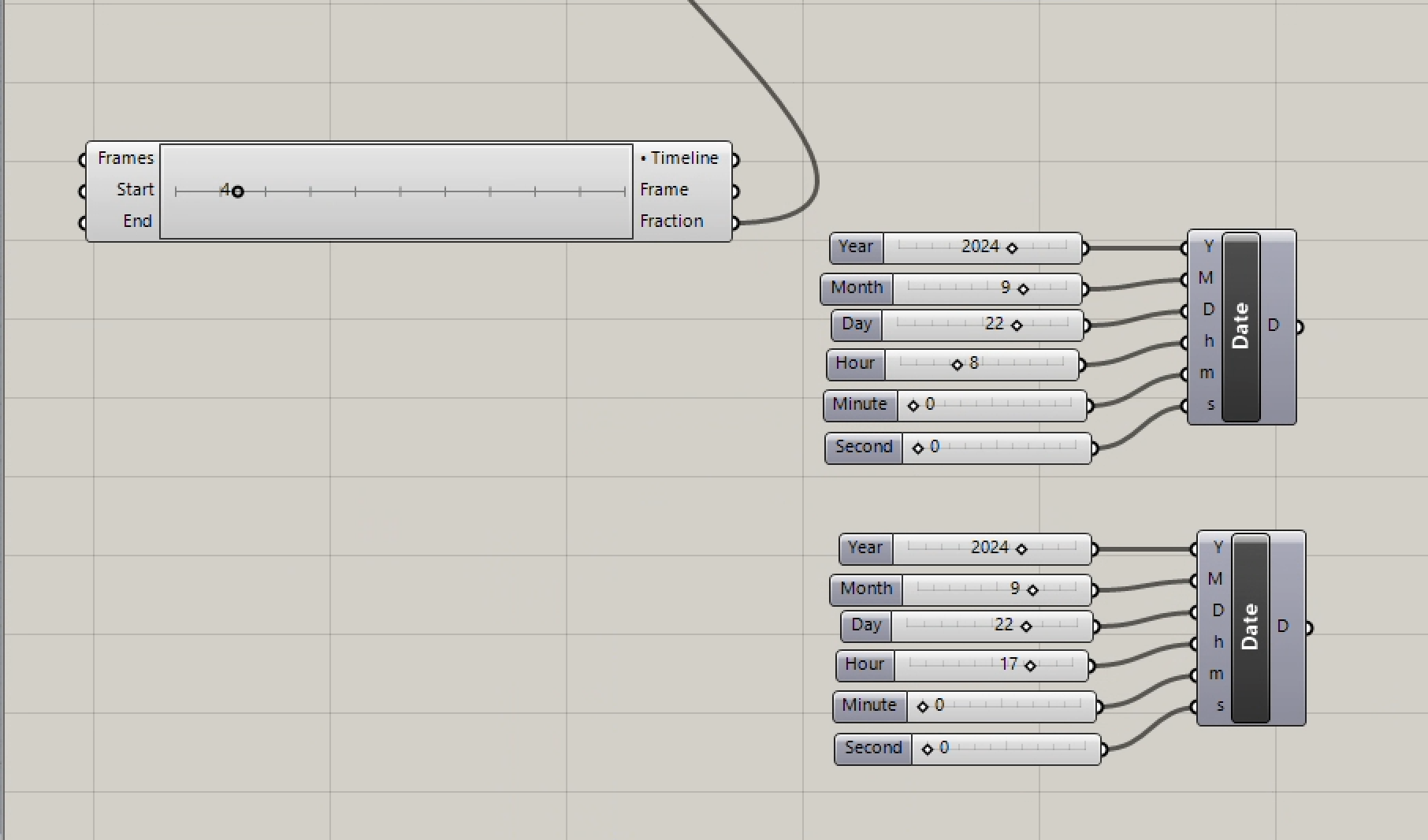
2. Add numerical sliders for "Y" (year, 0000 to 3000), "M" (month, 1 to 12), "D" (day, 1 to 32), "h" (hour, 0 to 23), "m" (minute, 0 to 59), and "s" (second, 0 to 59).
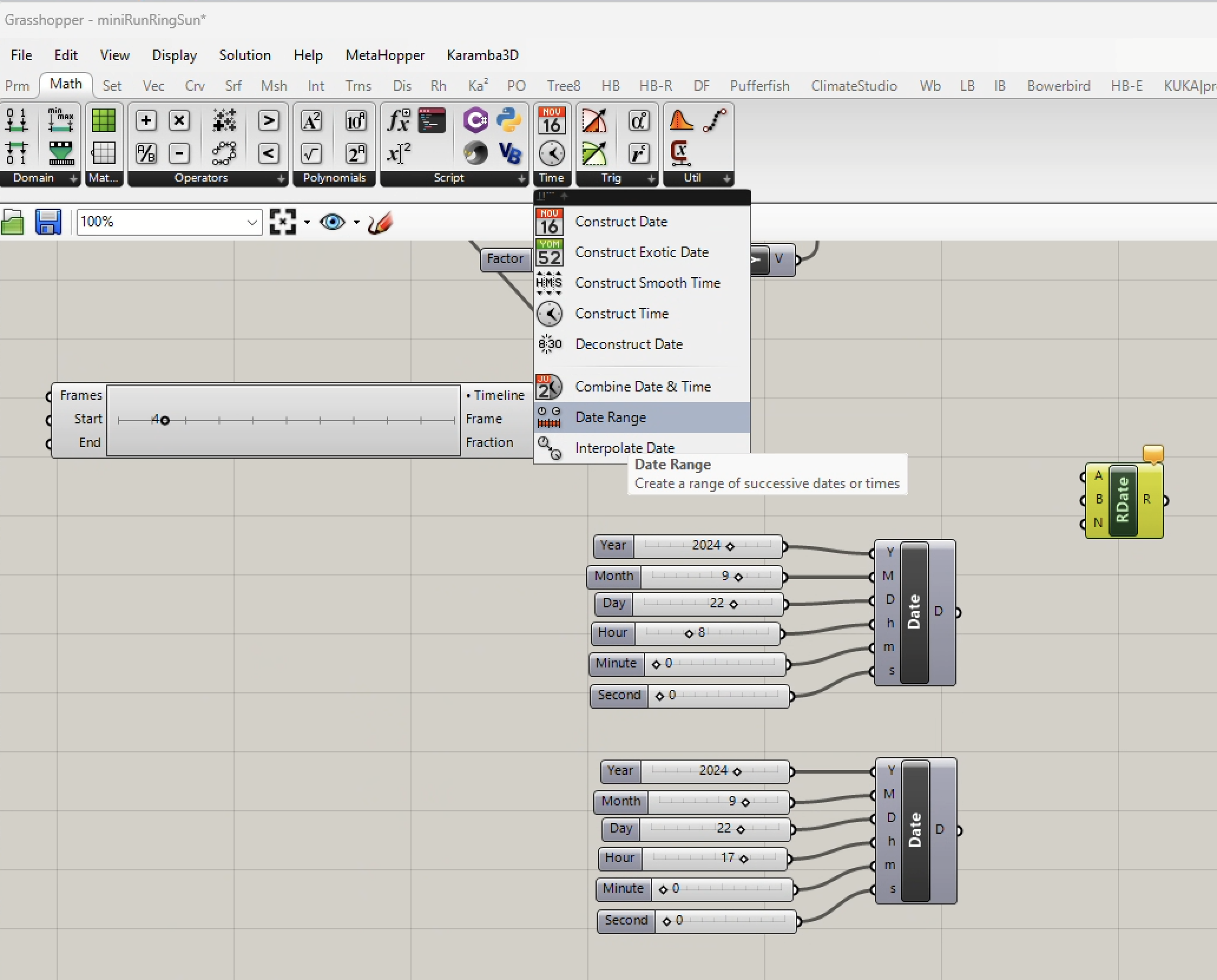
3. Add a "Date Range" component for generating a set of successive dates and times.
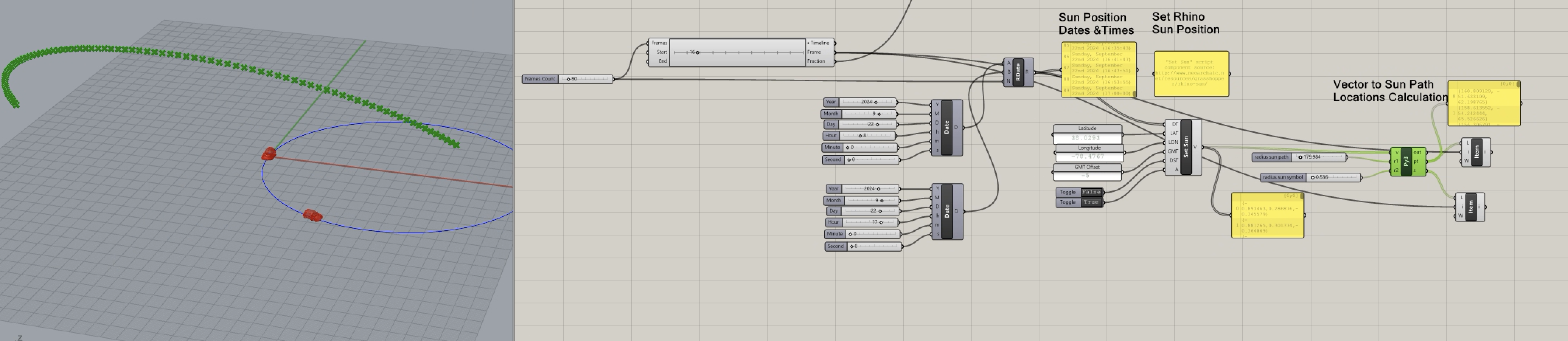
4. Set setup the frame count for the animation as whole, and also to determine the number of successive dates and times to be rendered. Thus, 360 frames yields 360 dates and times between the start and end times

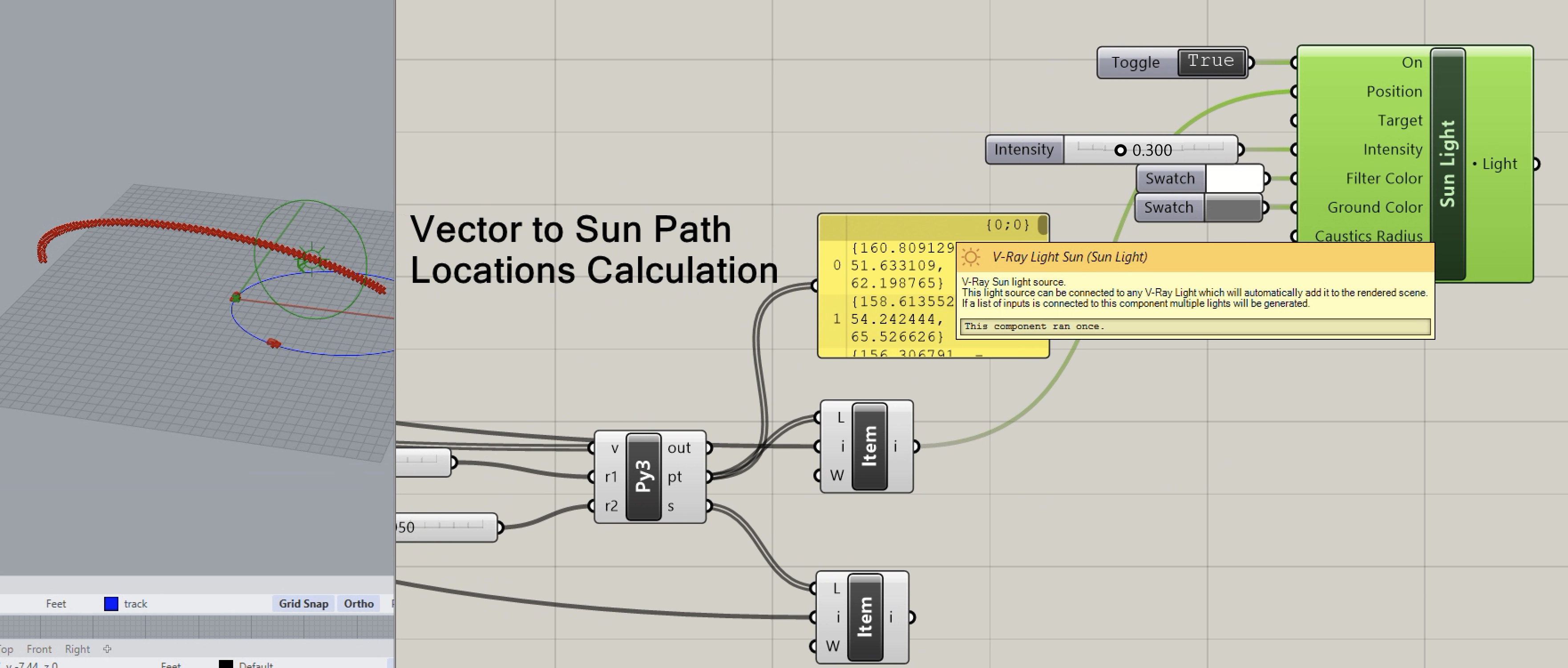
5. These next modules are available for copy and paste from the example file on the Classes server. The incorporate geographical location, daylight savings time, and calculation of the sun vector for each of the times evaluated. On the right-hand side of the Grasshopper canvas page see the py3 (Python Script) component written by Earl Mark. The Python conponent converts the sun vector calculationsto locations in the sky where a 3D point is generated to represent each position of the Sun relative to the 3D model.The sun path as a whole is shown as the green arc of points in the image to the left.
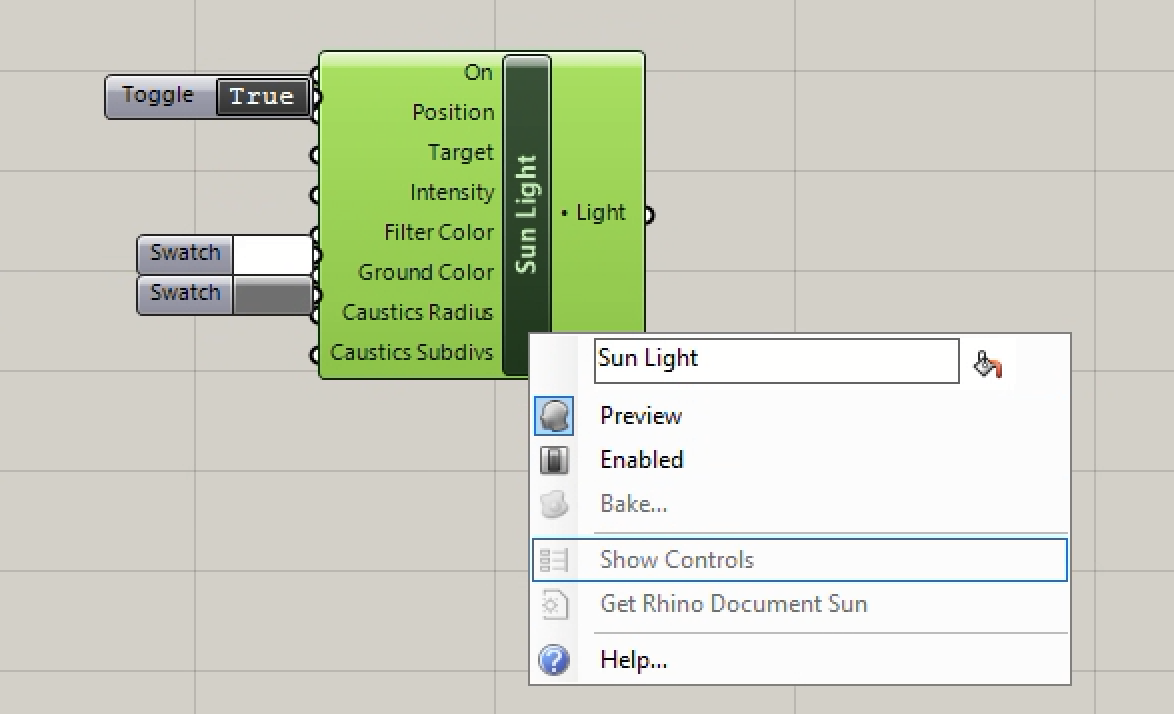
6. A V-Ray "Sun Light" component is now added to the Grasshopper Canvas, and a right-mouse-button click on the component is used to show it's input controls. The "Sun Light" default setting is to "On". The filter color is set to a default value of White and the ground color is set to a default value of Grey.

7. The calculated Sun Position is added to the "Position" port, and the "Intensity" of the sun is initially set to to 0.3.
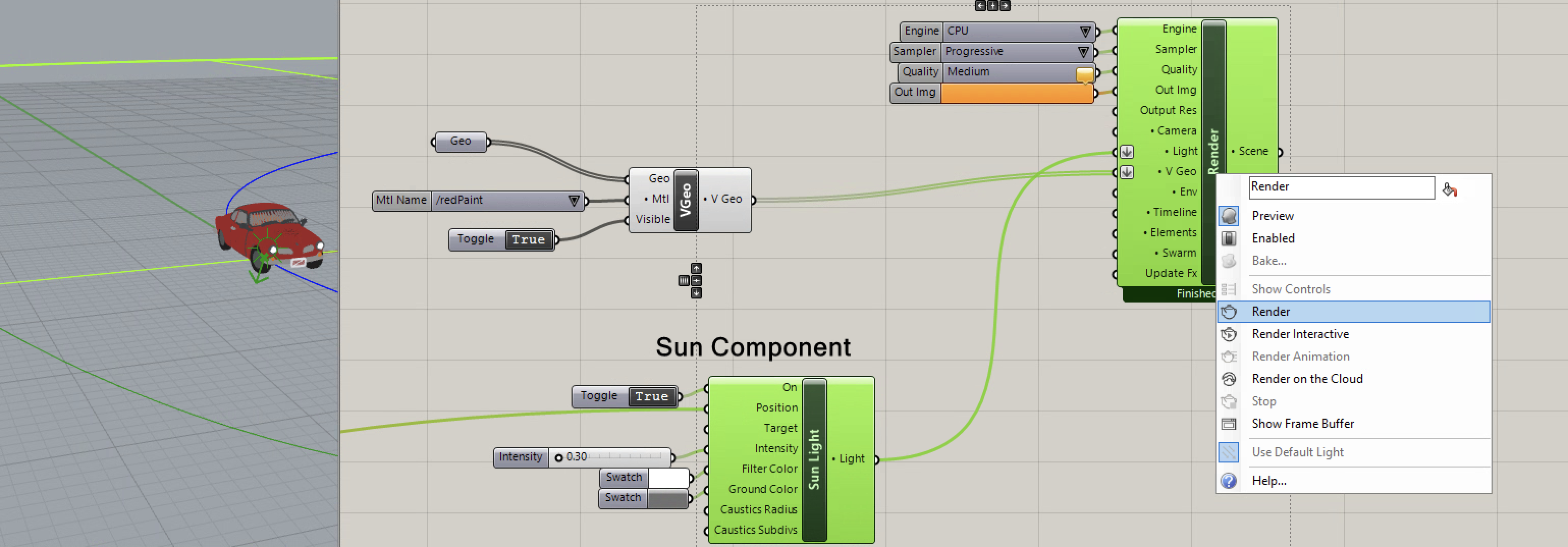
8. The "Sun Light" component is in turn connected to the "Light" input port of the V-Ray "Render" component.

9. A new test rendering is created by right-mouse-button clicking on the word "Render" of the V-Ray "Render" component, and selecting the word "Render".

H. Adding A "Render In Project" V-Ray Component.
This component allows for steamlined rendering through Grasshopper within the full context of all the objects that have been placed in Rhino, their materials and environmental conditions. Unless the objects thenselves are moving, they typically do not need to be imported directly in Grasshopper. Note the the Rhino Sun setting should be "Off" for this sequence.
1. Begin by adding a V-Ray " Render In Project" to the Grasshopper script.
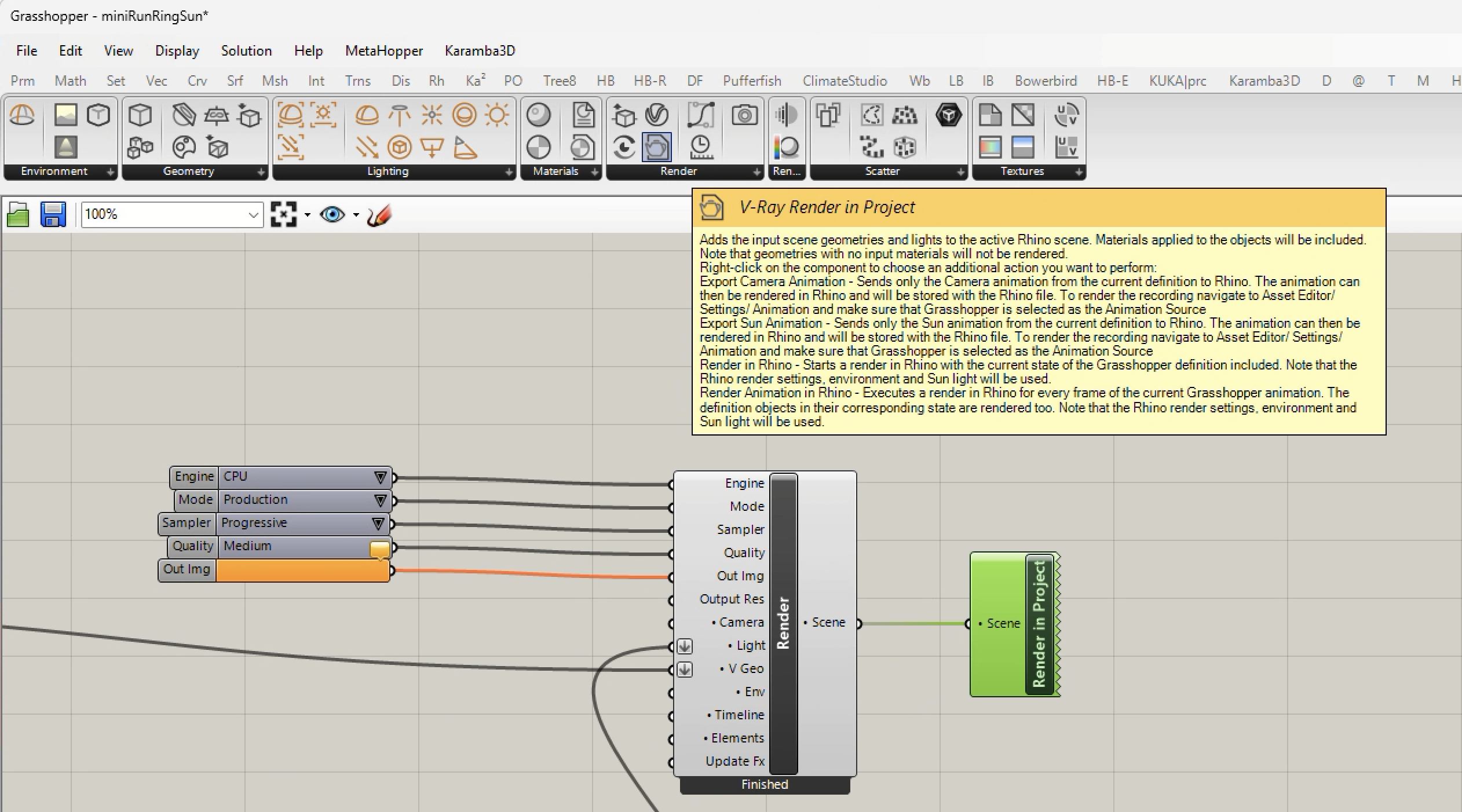
2. Connect the Timeline output of the V-Ray "Timeline" component "Timeline" output port to the V-Ray "Render" component "Timeline" input port

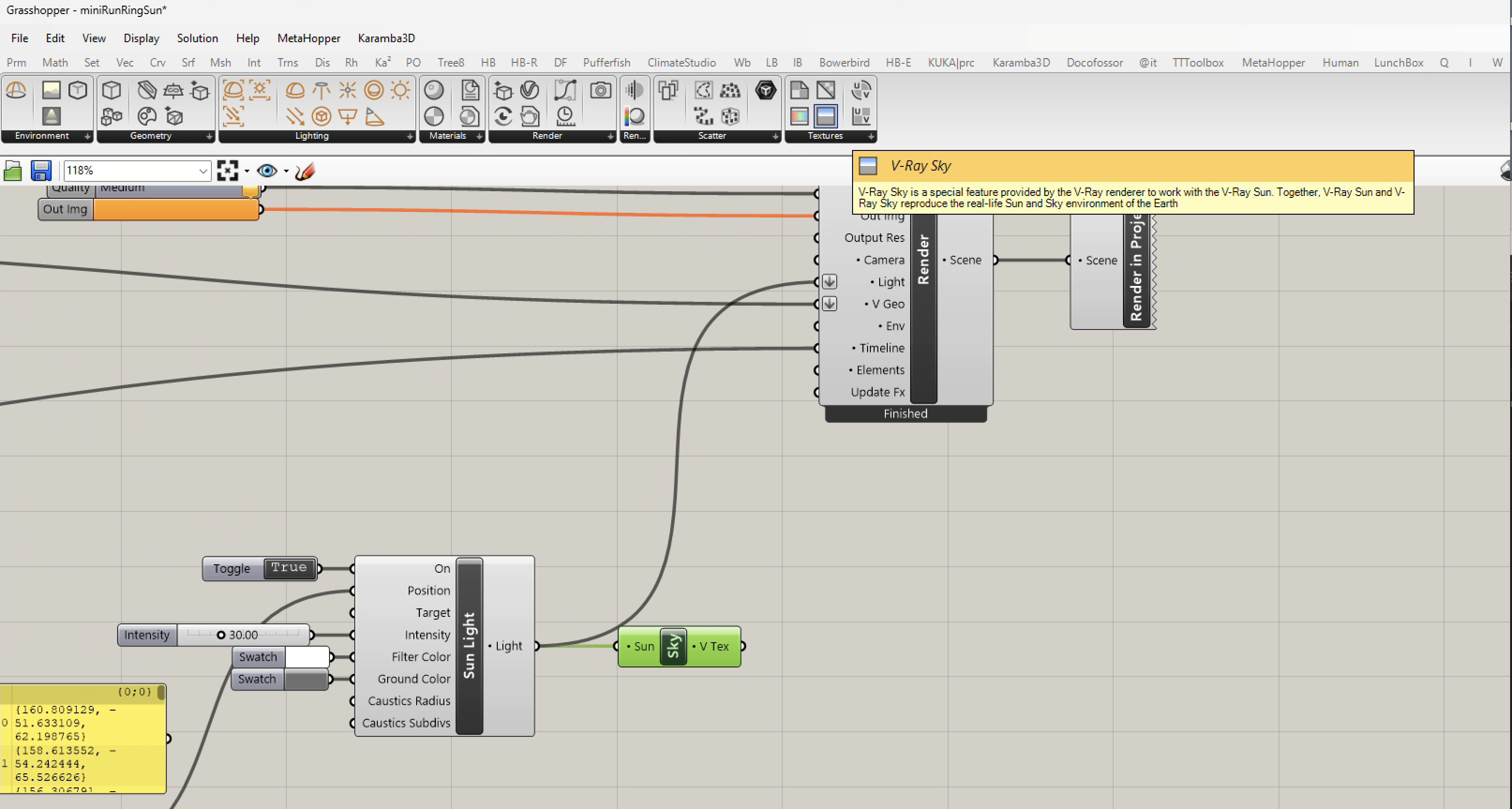
3. For additional testing within Grasshopper (rather than exported into Rhino) Connect a V-Ray " Sky" component to the output port of the VRay "Sun" component.
4. Add a V-Ray "Environment" component to the output port of the V-Ray "Sky" component.
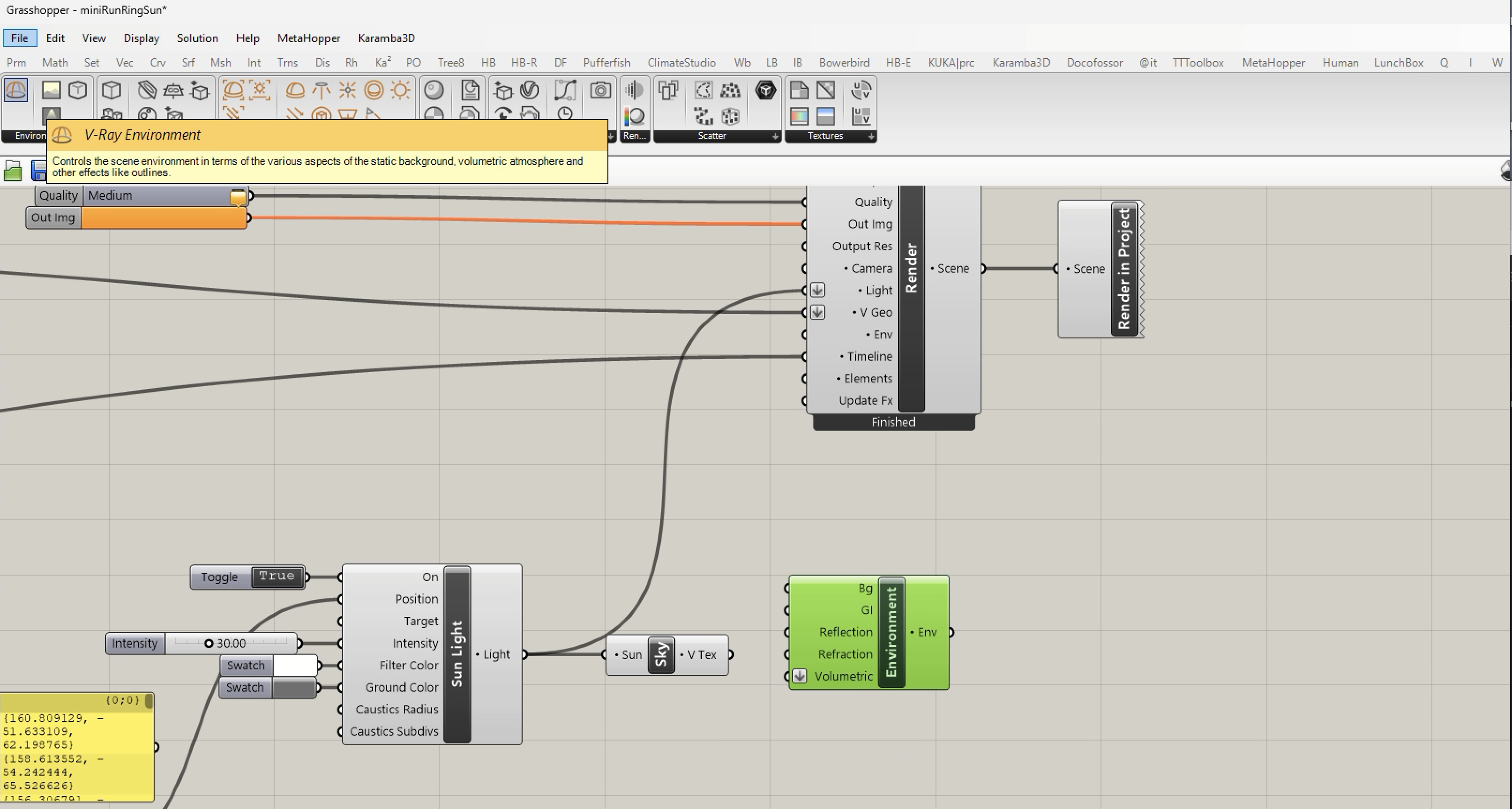
5. Connect the "Sky" component to the "Environment" component at the four input ports of "Bg", "GI", "Reflection" and "Refraction". Note this is similar to what we do in the "Enviroment" tab under the V-Ray "Asset Editor / Settings tab". Then, connect the "Environment" component "Env" output port to the "Render" component "Env" port. This enables a representation of the sky when rendering through the "Render" component in the Grasshopper environment, but is not needed when using the "Render In Project" component to render more directly inside Rhino.

6. Right-mouse-button click on the words "Render In Project" and select the option to "Export Sun Animation" to Rhino. Alternatively, you can "Export Camera Animation" if you have a moving camera. Take note that at present you can ony export one or the other, but not both the sun and a moving camera within a given animation. The Sun or the Camea, and any moving objects, such as the car, will be concurrently animated and rendered.

7. In the V-Ray Asset editor, there are three settings which are needed:
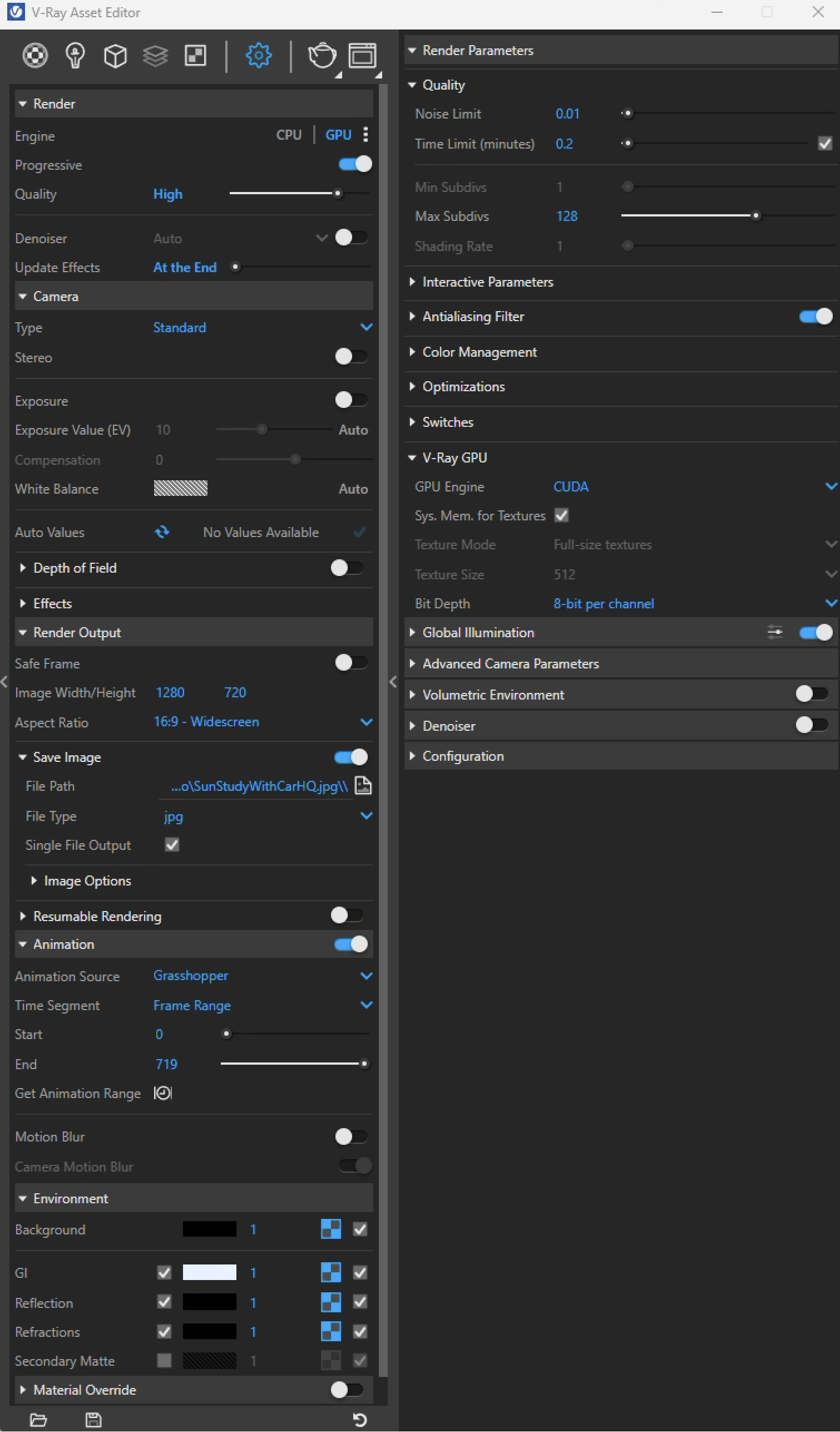
8. To generate the rendering of the animation itself, select again the option "Render Animation in Rhino" from the above menu. The rendering method depends upon the Rhino Sun element, and not a separate VRay Sun object. Prior to doing the animation, any V-Ray or Rhino Sun object should be turned off. The Grasshopper script will handle it being turned on for the animation itself.

9. If you shut down Rhino and re-open the Grasshopper file, you may notice that the "Render in Project" component is greyed out and disabled. To re-activate it, right-mouse-button click on component and select the "Enabled" option. You should then have activated and be able to re-use the "Render In Rhino" component as in step 6 above.
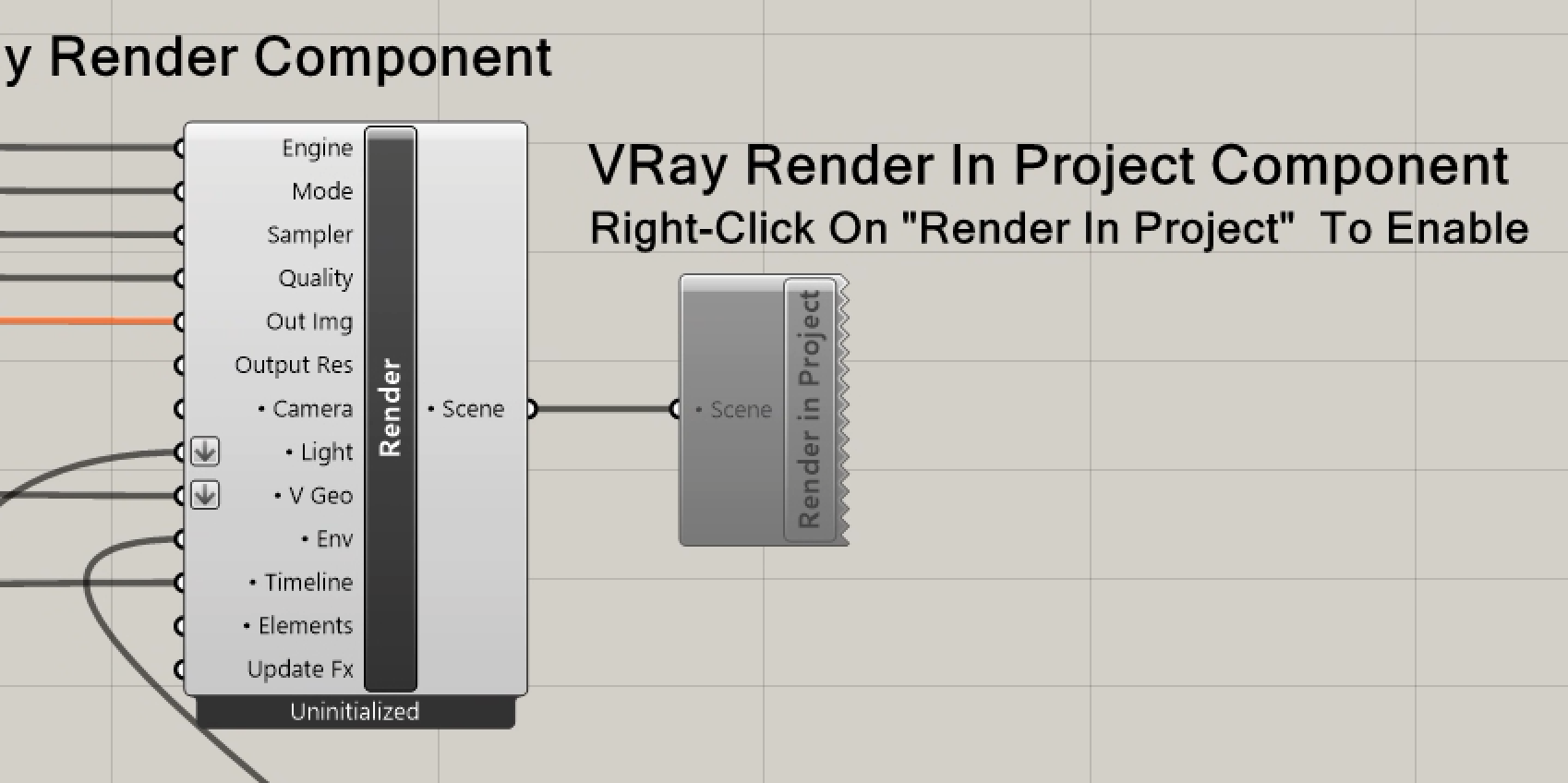
10. Taking time for fine tuning of the settings for Grasshopper components can be effective at capturing the range of conditions desired. In this case the start and end times were adjusted to begin and half-hour earlier, 6:30 am, and conclude a half-hour later, 6:30 pm (18:30), in order to best capture the range of changing sunlight conditions throughout the day.

Here is the result of the Grasshopper script and running the animation, compiled with Chaos Player into an mp4 file.
1. The context of the Rhino file includes the elements rendered in the following still image rendered for a mid-afternoon Sun. The car is not presently visible as it is on a layer that is turned off. All the other layers should be turned on.

2. By select the down arrow to the right of "/redPaint" in the "Mtl Name" component below, the color of the car was changed from red to an off white to work with the contrast range in the images.
 |
 |
|---|
3. The animation itself yields the following mp4 file recorded in low resolution with CPU rendering. The clouds are static when the Grasshopper "Render in Project" component is used,. This is a current limitation which can be mitigated by turning off the cloud simulation, allthough it's not a complete solution. However, Grasshopper animation of the car and sunlight are evident. The exposure level was made slightly brighter. The compiled animation render quality is slightly lower than the still image above in order to be playable over the Internet.
4. A similar but more detailed mp4 animation file is generated by using the GPU options and setting the quality to high. The difference is relatively nomimal. The car speed is slowed down by doubling the number of frames recorded for the same loop.
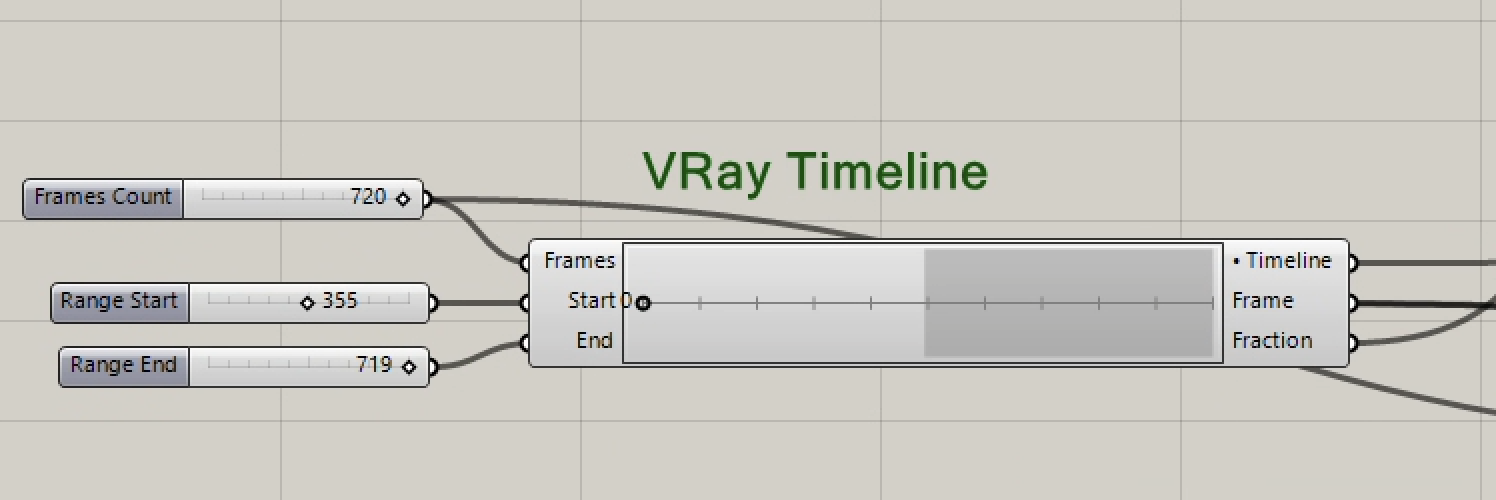
5. Note that due to a current bug with VRay Software, the animation can halt before being completed. This generally can be resolved by restarting the animation and adjusting the timeline to pickup the where the rendering stopped. As shown in the figure below, it is continued at frame 355 until the end of the animation sequence at frame 719. Since the fame counter is 0 based (i.e., it starts at frame 0), this results in a total of 720 frames.